What is Claude Connector WordPress and Why Do You Need It?
Claude Connector WordPress changes the way you manage your website by connecting AI directly to your WordPress environment. Instead of switching between dashboards, you can create content, analyze SEO, and manage your site using natural language, making your workflow faster and more efficient.

目錄
分享
Claude Connector WordPress is a powerful integration that connects Claude AI directly to your WordPress website for content management and automation. It helps you manage content faster, analyze SEO data, automate workflows, and control your website using natural language instead of manual dashboard work.
This tool is especially useful for bloggers, marketers, developers, agencies, and website owners who want to improve productivity and workflow efficiency. In this guide, we’ll explore how this integration works in practice and walk through three different methods you can use to connect Claude with your WordPress site effectively.
What is Claude Connector WordPress?
Claude Connector WordPress is an integration that connects Claude AI directly to a WordPress website using the Model Context Protocol (MCP). This connection allows Claude to access and understand website data such as posts, pages, comments, and site metrics directly from the AI chat interface.
Instead of switching between different dashboards and tools, users can simply interact with Claude in natural language to analyze content, review website performance, generate content ideas, and support SEO tasks. Why Do You Need Claude Connector WordPress?
Why Do You Need Claude Connector for WordPress?
There are several reasons why connecting Claude to WordPress can improve your website management, content workflow, and overall productivity.
- Automate content management tasks: You can ask Claude to create, edit, summarize, or update posts and pages without manually working in the WordPress dashboard.
- Analyze website content and performance: Claude can review your blog posts, summarize long content, and provide insights about content structure, readability, and SEO improvements.
- Generate blog content and content ideas: You can use Claude to generate blog outlines, article drafts, meta descriptions, titles, and content ideas directly based on your website topics.
- Improve SEO and internal linking: Claude can suggest keywords, optimize headings, write meta descriptions, and recommend internal links between your posts.
- Manage your website using natural language: Instead of clicking through many dashboard pages, you can simply type commands like “Show my latest posts” or “Summarize comments on this post.”
- Save time and reduce repetitive work: Many repetitive tasks such as content updates, summaries, and SEO optimization can be automated with Claude.
- Useful for developers, marketers, and agencies: Developers can automate workflows, marketers can manage content faster, and agencies can manage multiple WordPress websites more efficiently.
Key Features of Claude Connector WordPress
Claude Connector WordPress provides a set of powerful AI-driven capabilities that help streamline content creation and improve the overall WordPress workflow.
- Conversational Site Analytics
- Content Management & Auditing
- Strategy & Creative Support
- Advanced Management (Writing & Actions)
Conversational Site Analytics
Conversational site analytics allows users to interact with their website data using natural language instead of manually checking complex analytics dashboards. With this feature, users can simply ask questions about website traffic, popular posts, user behavior, or content performance, and the AI will provide clear answers and insights.
This makes it easier for website owners and marketers to understand their website performance and make better content and marketing decisions.
Content Management & Auditing
Claude Connector WordPress helps you manage and audit your website content more efficiently using natural language. Instead of manually checking each post in the WordPress dashboard, you can ask Claude to review your content, summarize articles, and identify outdated or underperforming posts.
Claude can also suggest improvements for content structure, headings, keyword usage, readability, and SEO optimization. This makes it easier to maintain content quality and ensure your blog posts follow a consistent structure and SEO strategy.
Strategy & Creative Support
Claude Connector WordPress can also support content strategy and creative planning for your website. By analyzing existing posts, categories, and website topics, Claude can suggest new content ideas, blog topics, content clusters, and keyword strategies that match your website goals.
In addition, Claude can help create blog outlines, write article drafts, generate titles and meta descriptions, and suggest internal linking strategies. This makes it easier for content teams, marketers, and website owners to plan and produce content more consistently and strategically instead of creating content randomly.
Advanced Management (Writing & Actions)
Claude Connector WordPress allows advanced website management by enabling Claude not only to analyze content but also to perform actions on your WordPress site. Depending on permissions and setup, Claude can create new posts, edit existing content, update pages, manage categories, and assist with content publishing workflows.
This means you can manage your website using natural language commands such as asking Claude to create a draft post, update a page, rewrite content, or organize posts into categories. This significantly reduces the time spent navigating the WordPress dashboard and makes website management faster and more efficient.
How to Connect Claude With WordPress: 3 Methods
There are several ways to connect Claude with WordPress, depending on your technical skills and automation needs, and the following are the three most common methods.
Method 1: Connect Claude Desktop to WordPress via InstaWP MCP
Claude Desktop is the desktop application that provides a chat-based interface for interacting with Claude on Mac or Windows. This method is ideal for users who want to manage their WordPress website through a conversational interface without using terminal or command-line tools.
Before getting started, make sure you have the following requirements ready:
Requirements:
- Install Claude Desktop on your computer (Mac or Windows)
- Create an InstaWP account (Sandbox plan or higher)
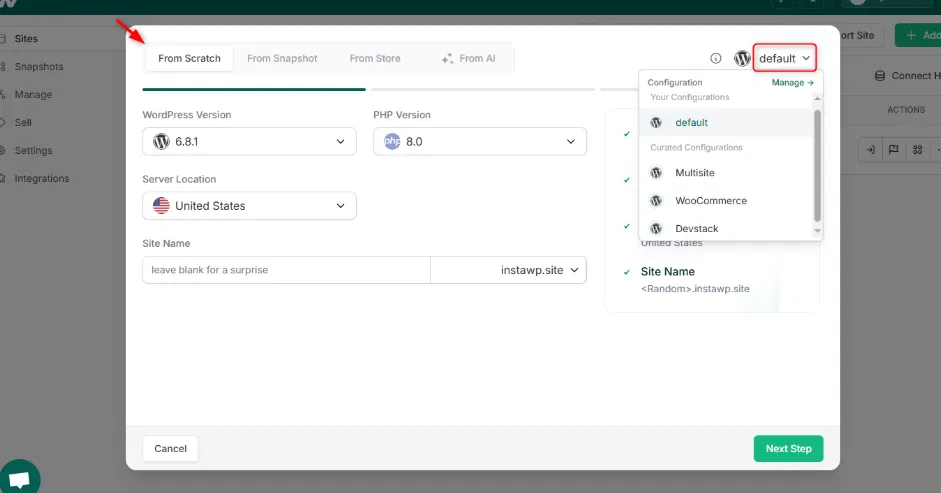
Step 1: Create or open a site in InstaWP
Go to the Sites section in your InstaWP dashboard, then create a new WordPress site or open an existing one. InstaWP can set up a WordPress site within seconds, so if you want a fresh staging environment for testing or development, creating a new site is the quickest option.
Step 2: Enable MCP
Click on the site name to open the Site Details page. From there, navigate to the left-hand sidebar and select the MCP option to continue the setup process.
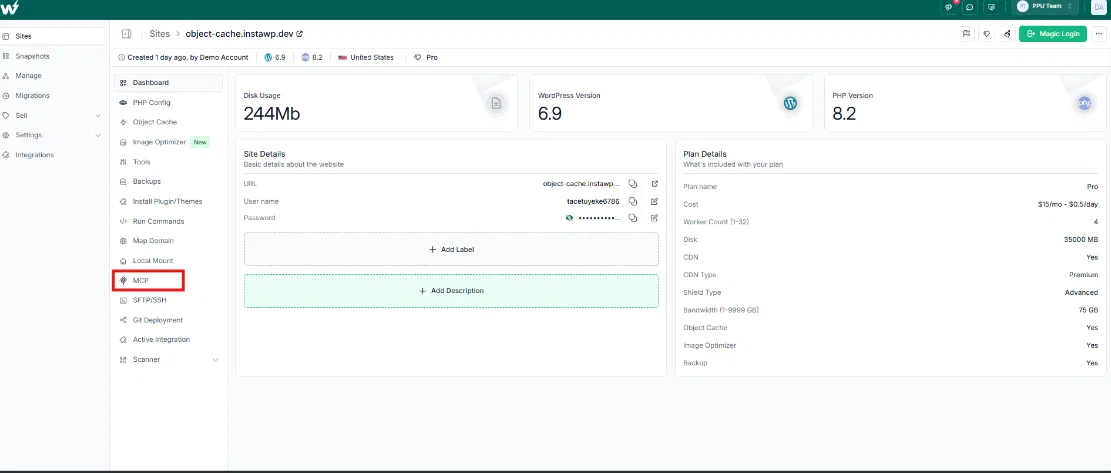
Toggle “Enable MCP” to ON.
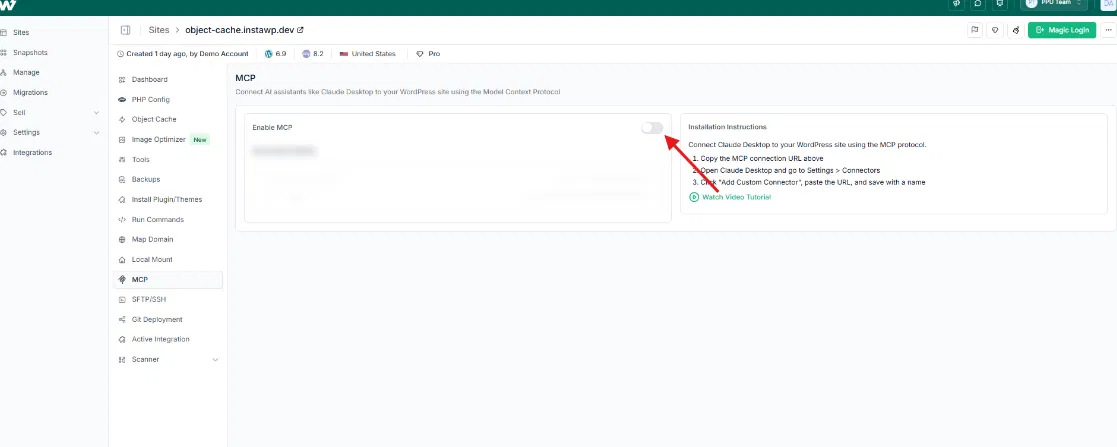
After completing this step, the system will generate a unique WordPress MCP server URL for your site. At the same time, a dedicated WordPress MCP plugin will be installed remotely, a secure authentication token will be created, and the SSE (Server-Sent Events) connection will be enabled to allow communication between WordPress and the AI system.
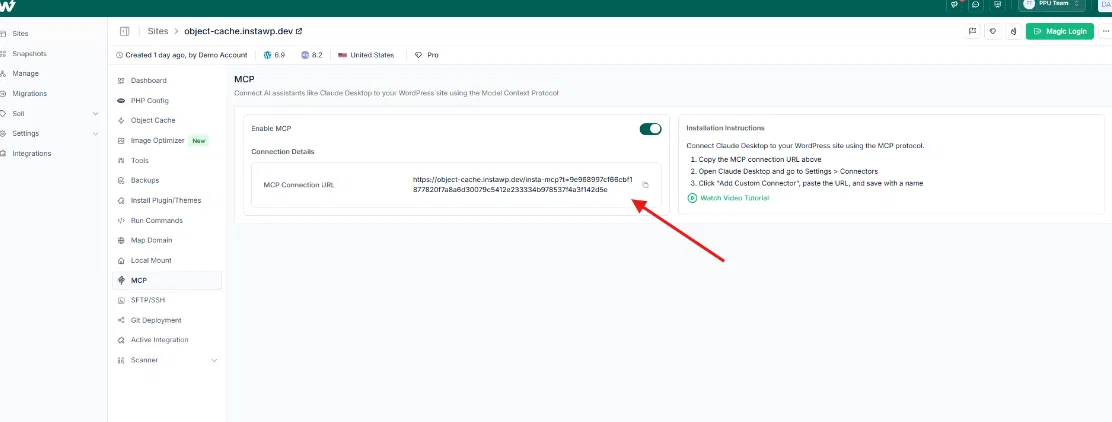
Step 3: Add the connector in Claude Desktop
Open Claude Desktop and go to the Settings menu.
On macOS, you can press Cmd + ,, and on Windows, press Ctrl + , to open the settings quickly.
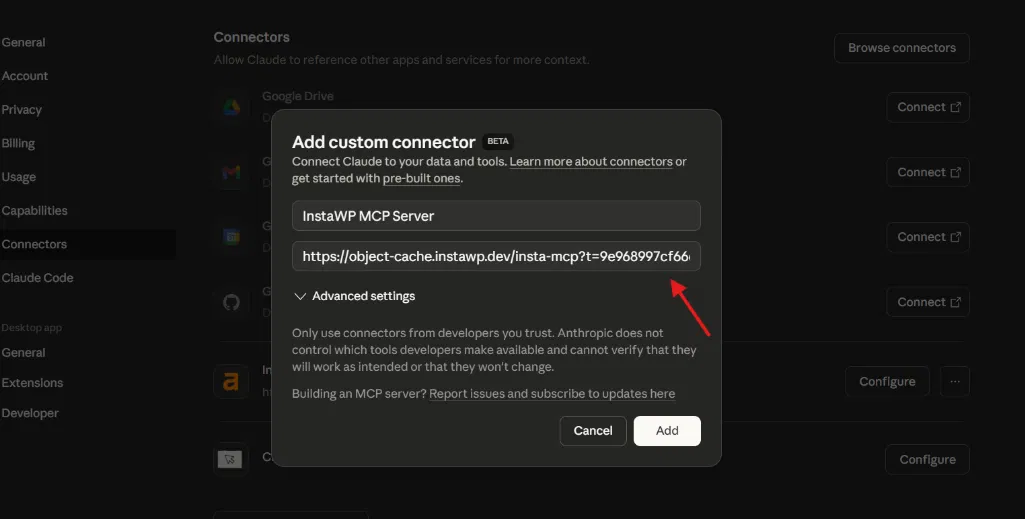
Next, go to the Connectors section (in some versions, this may be called Integrations). Click “Add Custom Connector,” enter a clear name such as “Client Site – Acme Corp,” then paste your MCP server URL into the field and click Add to complete the setup.
Step 4: Verify the connection
Start a new chat in Claude Desktop and try asking a question such as, “What posts are on my WordPress site?” Claude will then connect to the MCP server, retrieve data from your WordPress site through the REST API, and display the results in a structured list. If the posts appear correctly, it means the connection has been successfully established.
At this point, Claude can access your WordPress site with authenticated permissions for reading and writing content, allowing you to manage your website using natural language through a visual chat interface.

Claude will connect to the MCP server, retrieve your posts through the WordPress REST API, and display them in a structured list. If the posts are returned successfully, it means your WordPress MCP server integration is working correctly and the connection is active.
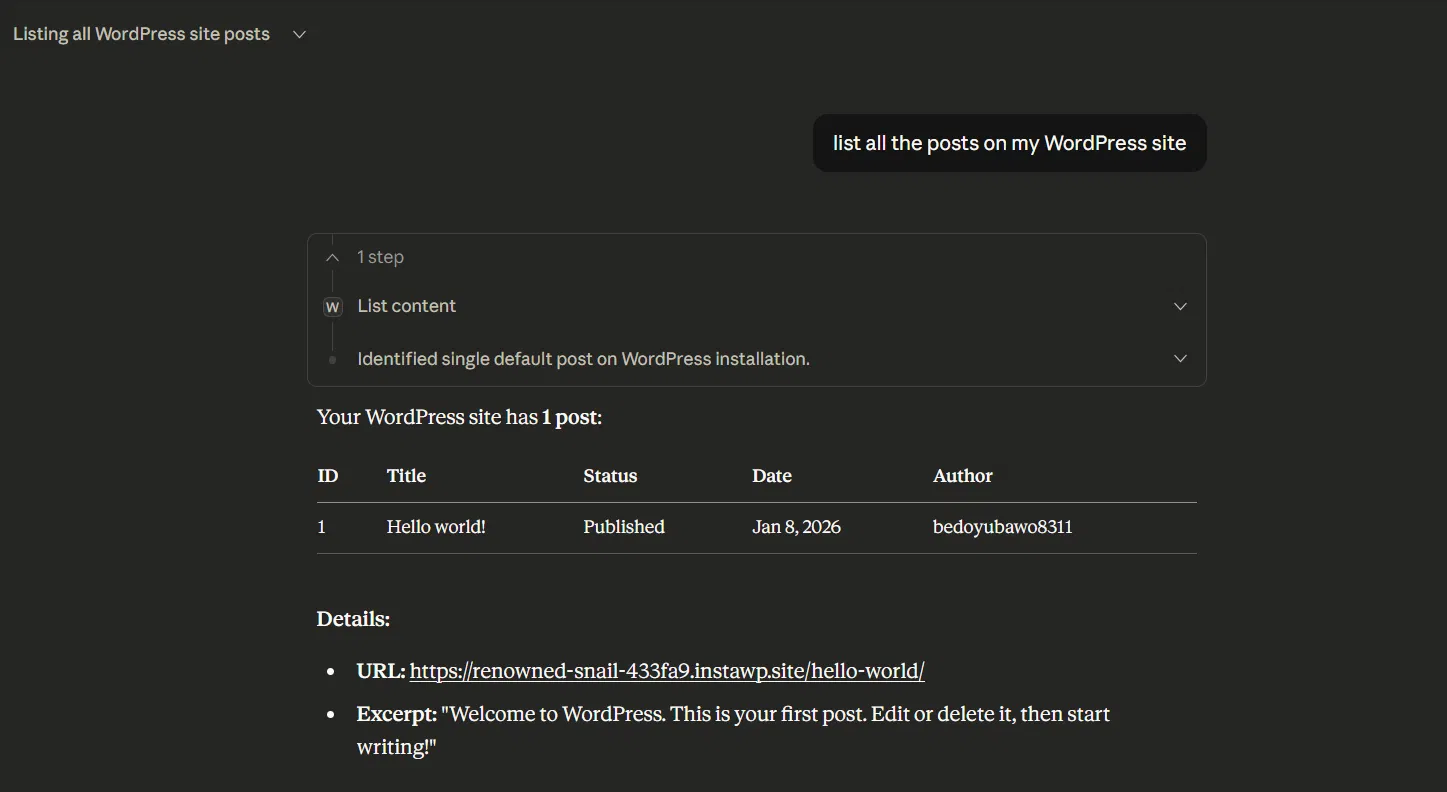
At this point, Claude Desktop is fully connected to your WordPress site, allowing you to manage your website remotely through a conversational interface.
Method 2: Manual WordPress MCP Server Setup
For developers who want full control over their setup or are not using InstaWP, the MCP server can be installed and run manually using the open-source Node.js package provided by InstaWP. This method allows you to control the server environment and customize the integration if needed.
With a manual setup, you can extend the MCP server using your own Node.js logic and integrate it into your existing development workflow. However, this method also means you are responsible for installation, server maintenance, authentication credentials, and making sure yourWordPress site is accessible from the internet.
Before setting up the MCP server manually, make sure you have the following:
- Node.js version 18 or higher, along with npm or yarn
- A WordPress website with the REST API enabled and accessible via a public URL
- An Application Password for the WordPress user that Claude will use to authenticate
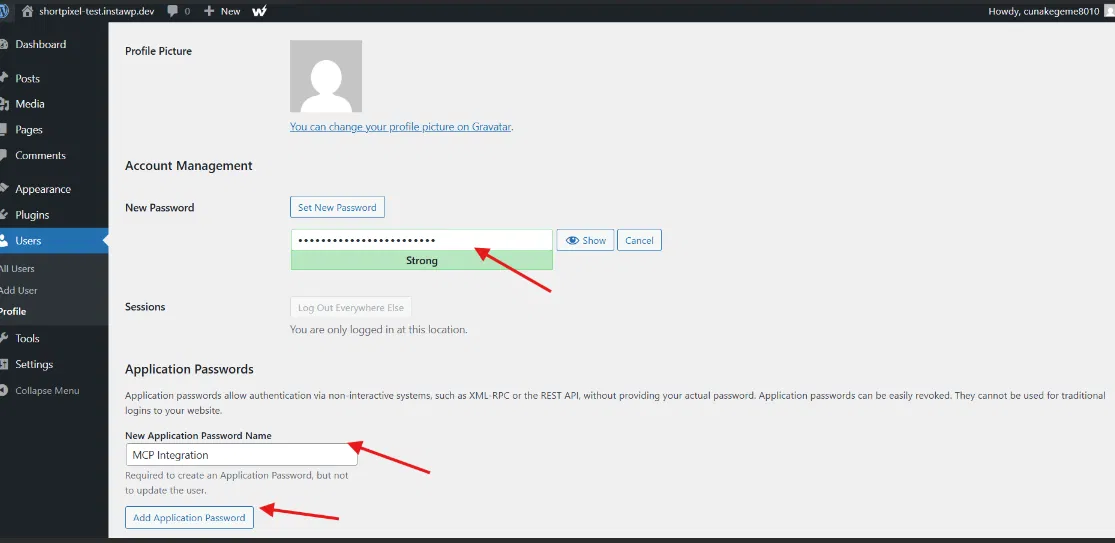
To create an Application Password, log in to your WordPress admin dashboard, go to Users → Profile, find the Application Passwords section, enter a name such as “MCP Integration,” click Add New, and copy the generated password (including the spaces).
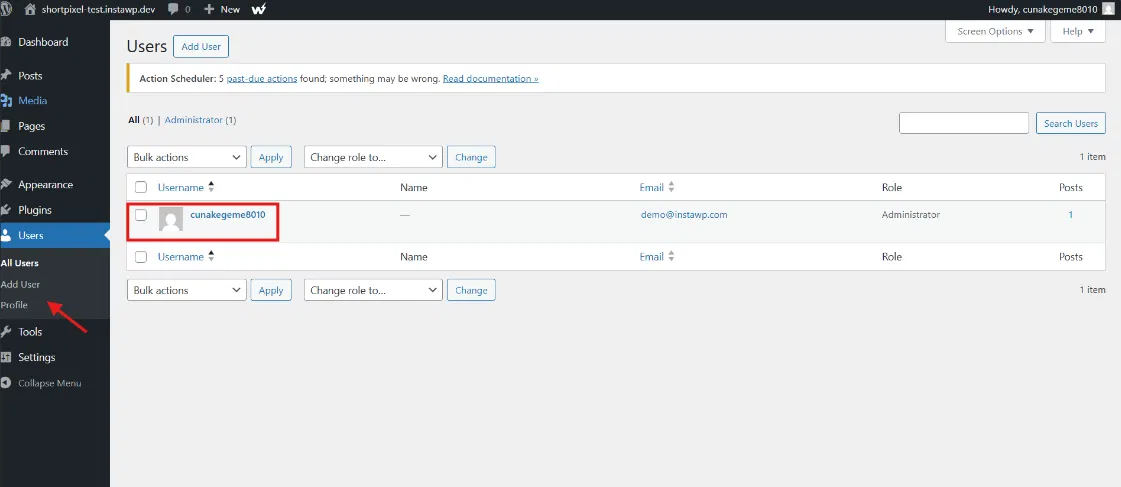
Navigate to the Application Passwords section, enter a name such as “MCP Integration,” then click Add New Application Password. After the password is generated, copy it and keep it secure. Note that the spaces in the password are normal and should be included when using it for authentication.
Next, you need to install the WordPress MCP server. There are two ways to do this.
Option A: Run the server directly using npx (no installation required)
This is the quickest way to start the MCP server without installing the package globally. Simply run the following command:

Option B: Clone and build from source

Now, create a .env file in the project root:

The next step is to configure Claude Desktop so it can connect to your MCP server. To do this, you need to edit the Claude Desktop configuration file on your computer.
You can find the configuration file at the following locations:
- macOS: ~/Library/Application Support/Claude/claude_desktop_config.json
- Windows: %APPDATA%\Claude\claude_desktop_config.json
Open this file using a text editor, then add your MCP server configuration to the file as shown below.
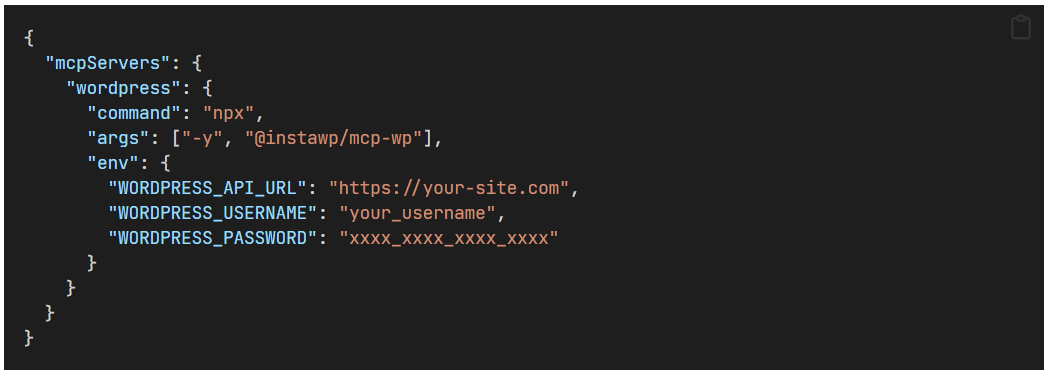
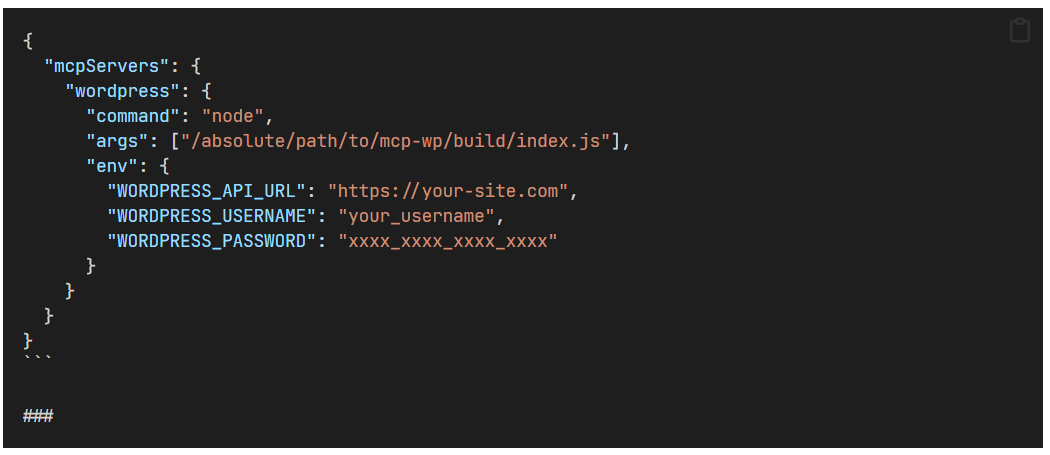
For local builds, use the absolute path:
Restart Claude Desktop to apply the changes. Once the application launches, the MCP server will start automatically in the background. To confirm everything is working correctly, try running a simple query.

Claude should list available MCP tools like list_content, create_content, discover_taxonomies, etc.
Method 3: WordPress MCP Plugin Approach
This method uses a WordPress MCP plugin to connect your WordPress site with Claude.
It is one of the easier methods because most of the MCP server setup and authentication are handled through the plugin interface instead of manual server configuration.
Step 1: Install the WordPress MCP Plugin
First, log in to your WordPress admin dashboard. From the left sidebar, go to Plugins → Add New, then upload or search for the WordPress MCP plugin and install it. After the installation is complete, click Activate to enable the plugin on your website.
Once the plugin is activated, a new MCP or integration settings page will appear in your WordPress dashboard. This page will be used to configure the connection between your WordPress site and Claude.
Step 2: Configure the Plugin and Generate Credentials
Next, open the MCP plugin settings page and configure the connection. The plugin will generate the credentials required for Claude to access your WordPress site.
The plugin typically generates:
- MCP Server URL
- API Endpoint
- Authentication Token / API Key
- Access Permissions
Make sure to copy and save these credentials securely because they will be used in Claude Desktop configuration.
Step 3: Configure Claude Desktop
Now open Claude Desktop and go to Settings → Connectors (or Integrations depending on the version). Click Add Custom Connector and enter a name for your WordPress connection, such as your website name.
Then paste the MCP server URL and authentication credentials generated from the WordPress MCP plugin. After entering the information, save the connector configuration so Claude can use it to connect to your website.
Step 4: Save and Restart Claude Desktop
After adding the connector, make sure all settings are saved, then close and reopen Claude Desktop. Restarting the application is necessary because Claude loads connector configurations when the application starts.
When Claude Desktop launches again, it will automatically connect to your WordPress MCP server using the credentials you configured earlier.
Step 5: Verify the Connection
To verify that the connection is working properly, start a new conversation in Claude Desktop and try a simple command. For example, you can ask Claude to list your WordPress posts, summarize a recent article, or show website content information.
If Claude successfully returns data from your WordPress website, it means the connection has been set up correctly and you can now manage your WordPress site using Claude through natural language commands.
How to Use Claude Connector WordPress Efficiently?
To get the most value from Claude Connector WordPress, it’s important to use it strategically rather than just asking basic questions. Below are some practical ways to use the integration more efficiently for content management, SEO, and website operations.
- Use clear and specific prompts: Instead of asking general questions, write specific prompts such as asking for content summaries, SEO improvements, or content ideas based on existing posts.
- Use Claude for content audits: Ask Claude to review old posts, find outdated content, broken links, or posts that need SEO updates. This is very useful for large blogs.
- Generate content ideas and content plans: Claude can analyze your existing content and suggest new blog topics, content clusters, and long-term content strategies.
- Improve internal linking for SEO: You can ask Claude to find related posts on your site and suggest internal linking opportunities to improve SEO structure.
- Summarize comments and user feedback: Claude can review comments across multiple posts and summarize user feedback, helping you understand what your audience is interested in.
- Automate repetitive WordPress tasks: You can use Claude to help with repetitive tasks such as writing excerpts, meta descriptions, tags, or updating multiple posts.
- Plan and manage your content workflow: You can use Claude to create content calendars, outline blog posts, and manage your overall content workflow more efficiently.
- Always review AI-generated content before publishing: Even though Claude is powerful, you should still review content, SEO settings, and updates before publishing changes to your website.
Frequently Asked Questions ư
1. How does Claude Connector work with WordPress?
It connects Claude to WordPress through an MCP server or plugin, allowing Claude to read, analyze, and manage website content via the WordPress REST API using natural language commands.
2. Do I need coding skills to use Claude Connector WordPress?
No, you don’t need coding skills if you use plugin or InstaWP methods, but manual MCP setup may require basic technical knowledge.
3. Is Claude Connector WordPress safe to use?
Yes, it is safe if you use secure authentication, HTTPS, and limit access permissions.
4. Is Claude Connector WordPress free or paid?
It depends on the tools and services you use, such as hosting, plugins, or Claude plans.
5. Who should use Claude Connector WordPress?
Bloggers, developers, agencies, and website owners who want to manage WordPress using AI and automation.
Conclusion
Claude Connector WordPress is a powerful solution that helps you streamline website management by connecting AI directly to your WordPress site. From content creation and SEO optimization to workflow automation and advanced site management, it enables you to handle tasks more efficiently using natural language. With multiple connection methods available, users can choose the approach that best fits their technical level and workflow needs.
If you are looking to build, optimize, or scale your WordPress website, Arestós offers professional WordPress development and AI integration services tailored to your business goals. Ready to transform how you manage your WordPress site? Contact us today to get started with smarter, AI-powered website solutions.
訂閱我們的電子報!
隨時掌握最新的IT趨勢動態