Back to featured insights
How to Set Up a WooCommerce Multilingual Store Using a Plugin
Want to reach global customers and boost sales? Learn how to build a WooCommerce Multilingual Store with the best plugins. This guide walks you through setup, translation, and optimization to create a seamless shopping experience across multiple languages.
Table of Content
Share
A WooCommerce multilingual store allows you to create an online store that supports multiple languages and reaches a global audience. By offering content in different languages, you can improve user experience, build trust, and increase conversions.
This is especially beneficial for store owners looking to expand into international markets. In this guide, you’ll learn how to set up a multilingual WooCommerce store using plugins step by step.
What Is a WooCommerce Multilingual Store?
A WooCommerce multilingual store is an online shop that offers its content in multiple languages, allowing customers from different regions to browse and shop in their preferred language. This includes translating product pages, categories, checkout processes, and even system messages to create a seamless user experience.
Beyond simple translation, a multilingual store can also involve localization—adapting currency, payment methods, and shipping options based on the user’s location. By making your store accessible to a global audience, you can improve user experience, build trust, and increase international sales.
What Do You Need to Prepare for a WooCommerce Multilingual Store?
Before setting up a multilingual WooCommerce store, it is important to prepare the key elements to ensure a smooth and effective implementation.
Choose the Right Multilingual Plugin
Choosing a plugin that integrates well with WooCommerce is essential. Key options include:
- WPML: A powerful solution for complex stores, supporting product, checkout, and email translations, along with multi-currency features.
- Polylang: A lightweight and flexible plugin, suitable for users who prefer manual control.
- TranslatePress: Offers a visual front-end editor, making translation easy and intuitive.
- Weglot: A cloud-based tool with automatic translation and quick setup.
Prepare Your Website Structure (SEO)
A solid structure helps search engines understand and rank your multilingual content effectively:
- URL Structure: Decide whether to use subdirectories (e.g., /es/), subdomains, or separate domains, as this choice affects both SEO performance and site management.
- Hreflang Tags: Ensure your plugin correctly implements hreflang tags so search engines can identify the appropriate language version for each user.
- Translate URLs/Slugs: Localizing product and category URLs improves search visibility and makes your site more user-friendly for international visitors.
Prepare Your Content
Make sure your content is ready for translation to ensure consistency and quality:
- Product Information: Translate product titles, descriptions, attributes, and variations to provide complete and accurate details for each market.
- Pages: Ensure key pages such as Shop, Cart, Checkout, and My Account are fully translated to avoid confusion during the buying process.
- Navigation: Translate menus, categories, and tags so users can easily browse your store in their preferred language.
Plan Localization Elements
Adapt your store to match different regions and user expectations:
- Currency: Set up multiple currencies so customers can view prices and make purchases in their local currency.
- Payments: Provide region-specific payment methods to improve convenience and increase conversion rates.
- Shipping & Tax: Configure shipping options and tax rules based on location to ensure accuracy and compliance.
How to Make WooCommerce Multilingual by Using Plugins
Turning your WooCommerce store into a multilingual experience is easier than you might think, thanks to powerful translation plugins.
Instead of building everything from scratch, these tools allow you to translate products, pages, and checkout flows efficiently while maintaining full control over your content.
In this section, we’ll walk you through how to set up a multilingual WooCommerce store using four popular plugins.
- WPML
- Polylang
- Weglot Translate
- TranslatePress
Before setting up a multilingual WooCommerce store with a plugin, you need to know how to install and activate a plugin in WordPress.
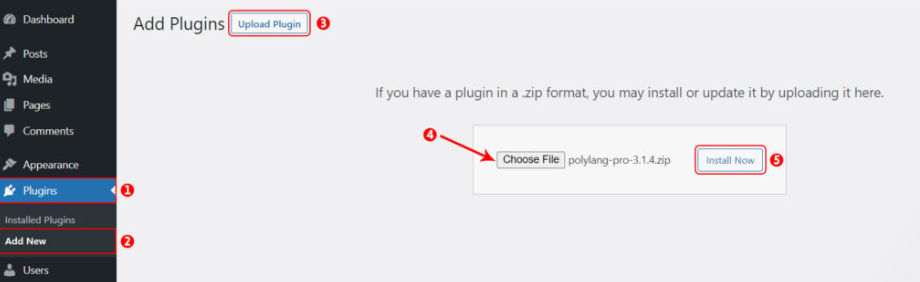
Here’s how to add a plugin to your WooCommerce site. First, log in to your WordPress admin area. From the dashboard, go to Plugins → Add New, then click Upload Plugin and choose the plugin file from your computer. After that, select Install Now to begin the installation.
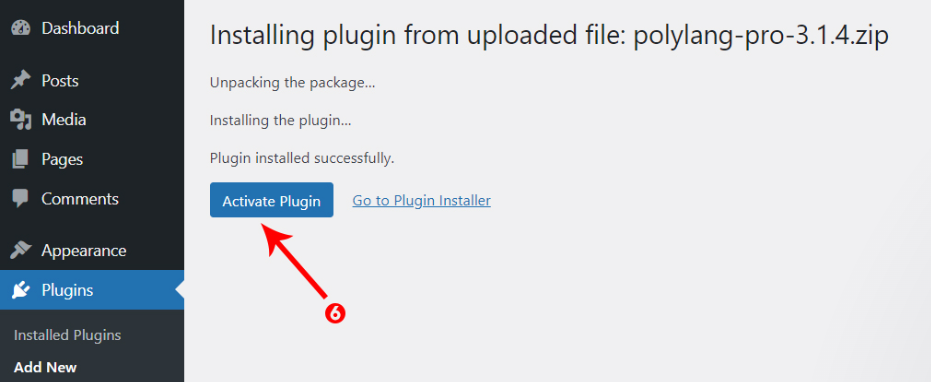
Once the installation is complete, click Activate to enable the plugin.
These installation and activation steps apply to all three plugins. Now, let’s move on to configuring each one.
WPML
WPML is a leading multilingual plugin for WordPress, trusted by over 1 million active users. It enables you to translate your WooCommerce store into more than 65 languages and manage multiple currencies with its free add-on, WooCommerce Multilingual.
System Requirements and Details
- Version: 4.7
- Active installations: 1,000,000+
- WordPress Version: 4.7 or higher
- PHP Version: 7.0 or higher
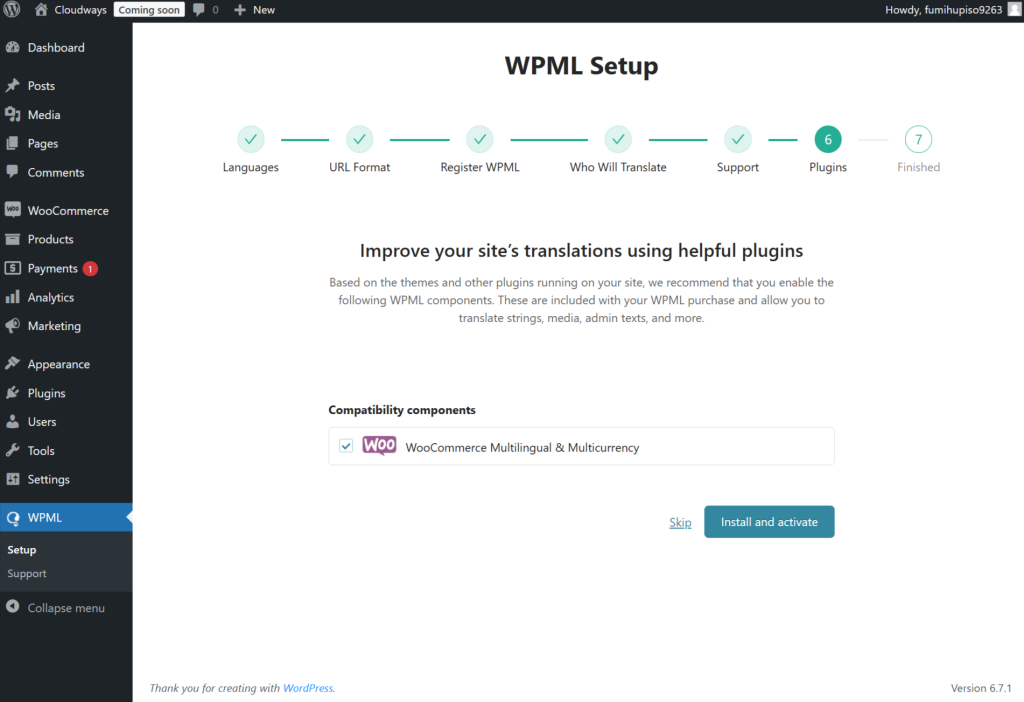
After installing WPML, navigate to WPML → Setup to start configuring it on your site. During the setup process, WPML will recommend installing the free WooCommerce Multilingual add-on—be sure to enable it to translate your store and access multi-currency features.
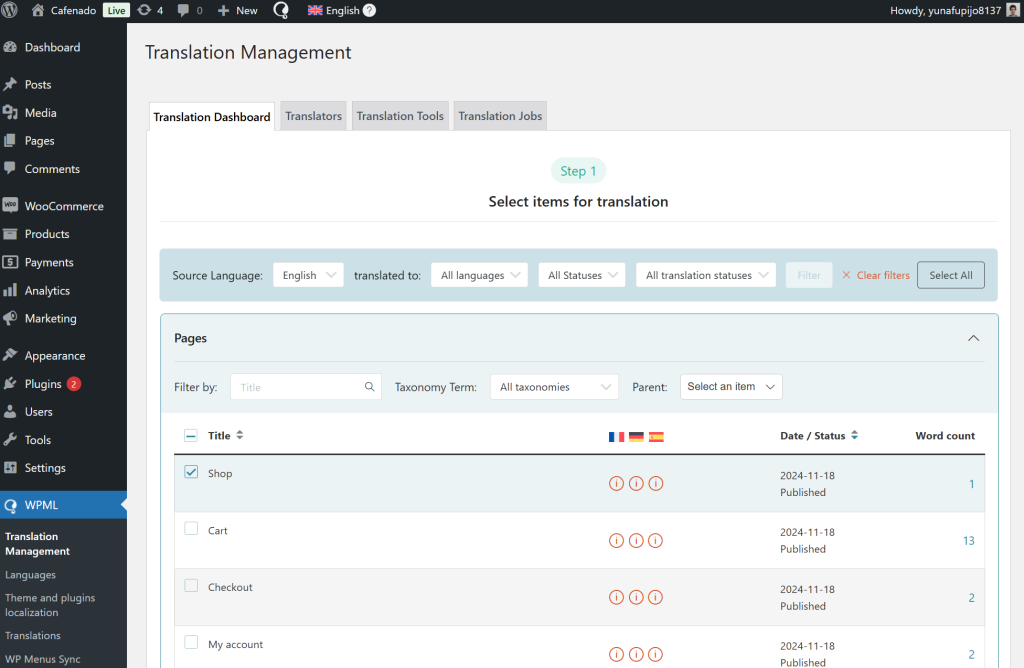
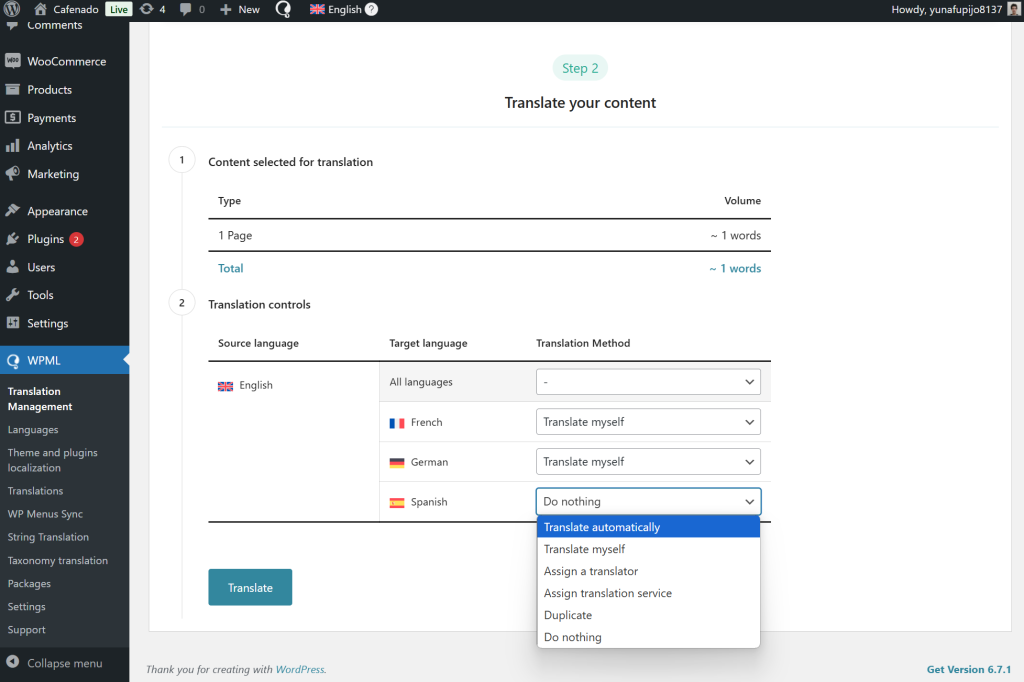
To begin translating your store, navigate to WPML → Translation Management, then choose the content you want to translate.
Next, select your preferred translation method—do it yourself, use automatic translation, assign it to your team, or connect with professional translation services. When everything is set, click Translate to get started.
Before publishing, WPML allows you to review your translations. Go to WPML → Translations and open the latest translation job. You can click “Accept this translation” to approve it or select “Edit translation” to make changes in the Advanced Translation Editor.
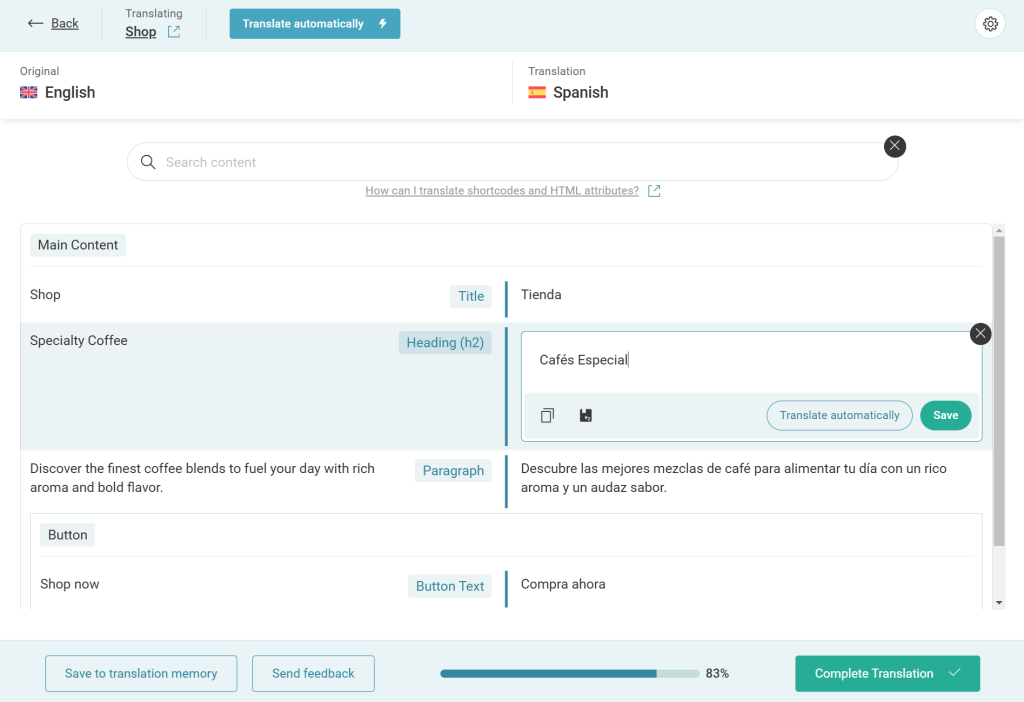
Once you finish reviewing, WPML will automatically publish the translations on your site.
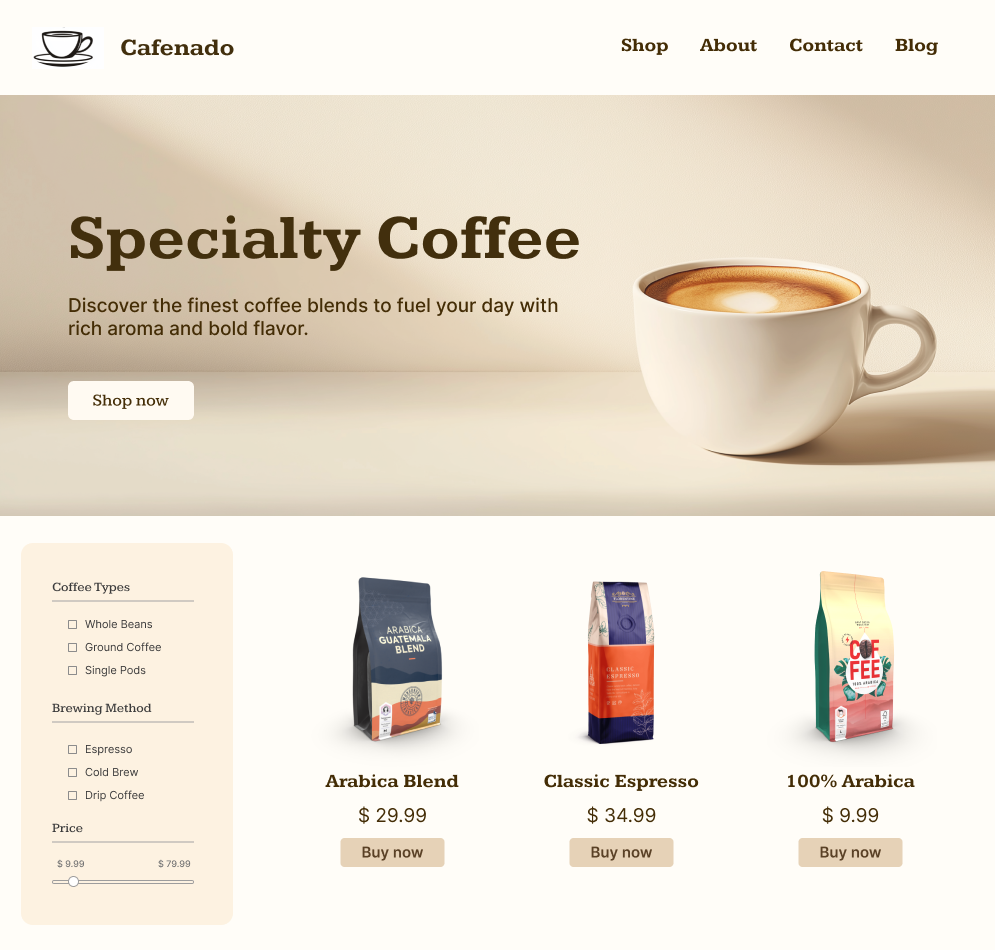

How to Add a WPML Language Switcher
WPML allows you to add a language switcher to menus, footers, templates, and individual posts. To add a language switcher to your site:
- Go to WPML → Languages.
- Scroll down to the language switcher settings section.
- Click Add a language switcher.
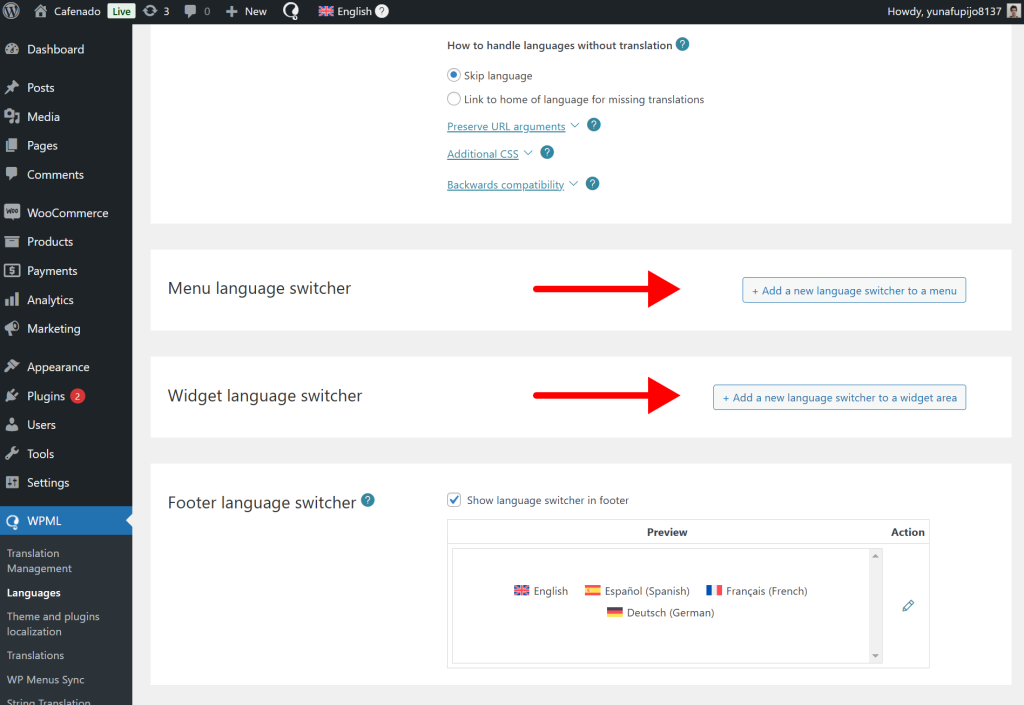
In the popup window, configure your styling preferences and save the changes. Your language switcher will then appear on your website.
Polylang
To get started with Polylang, install and activate the plugin, then launch the setup wizard and follow the on-screen instructions to complete the initial configuration. After that, proceed with the additional settings outlined in the next section.
System Requirements and Details
- Version: 3.1.4
- Active installations: 700,000+
- WordPress Version: 5.4 or higher
- PHP Version: 5.6 or higher
- Tested up to: 5.8.4
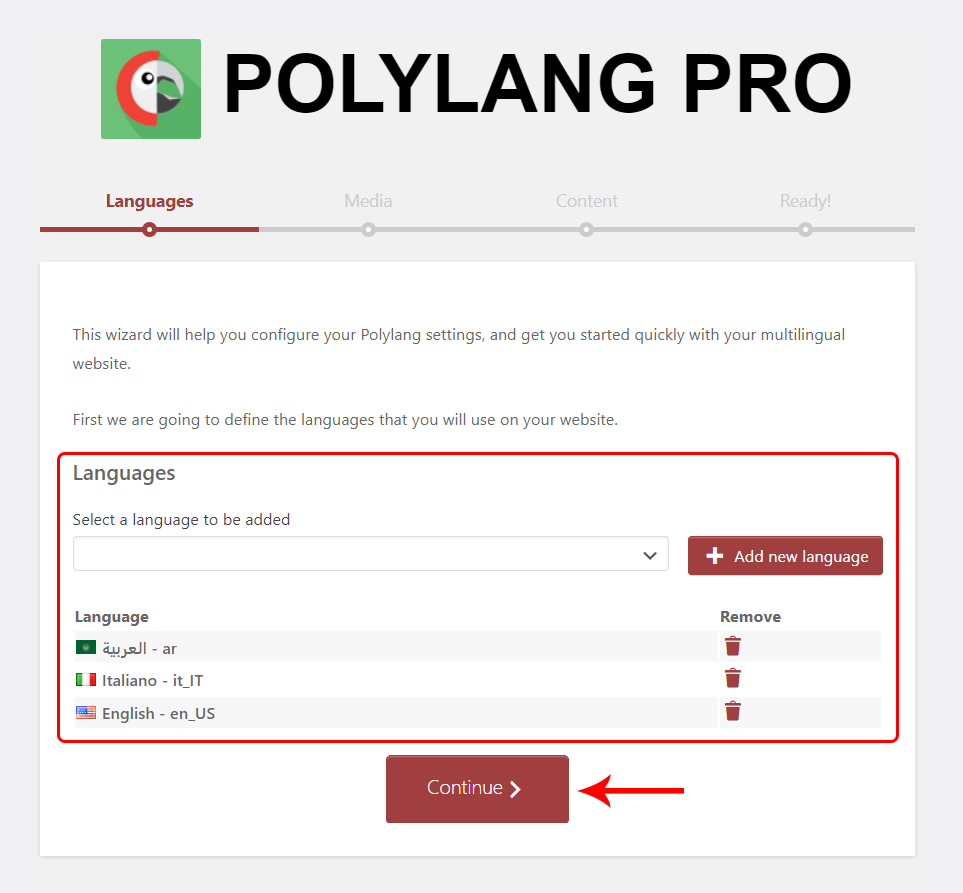
Select the languages you want to use for your WooCommerce store, then click Continue.
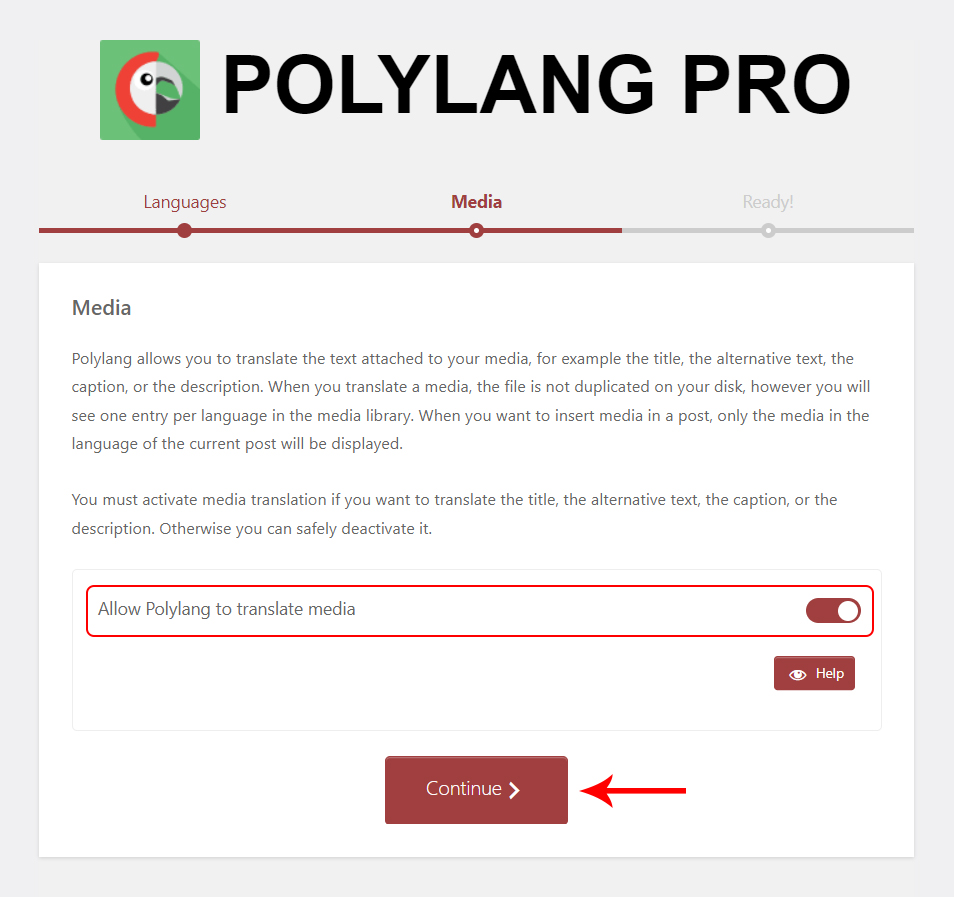
Turn on the toggle switch if you want to translate the text associated with your media files, then click the Continue button.
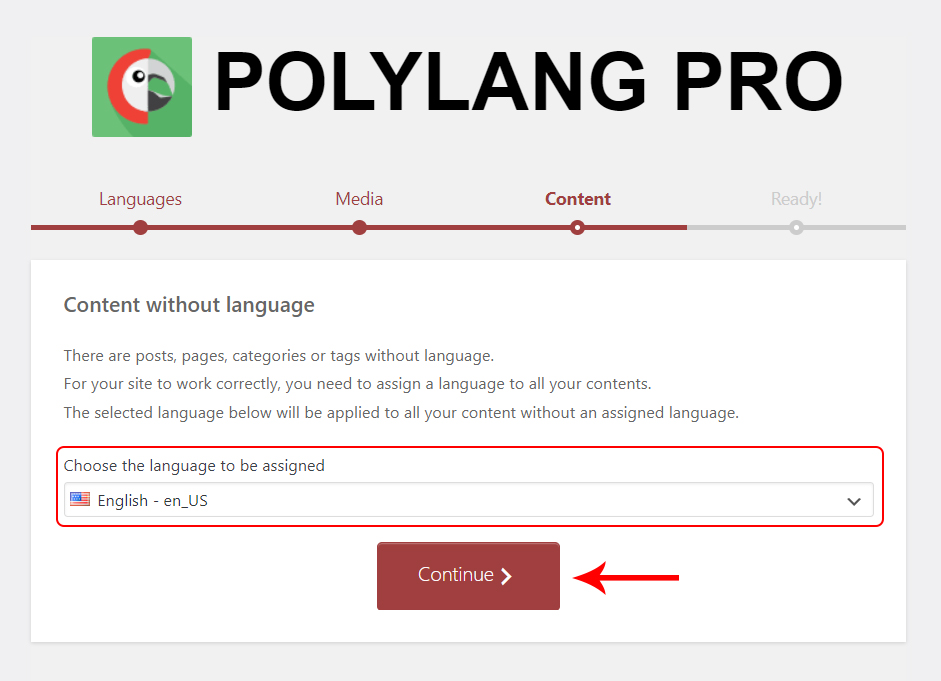
Select the default language for your content. This language will be applied to any content that has not yet been assigned a language. Once selected, click Continue.
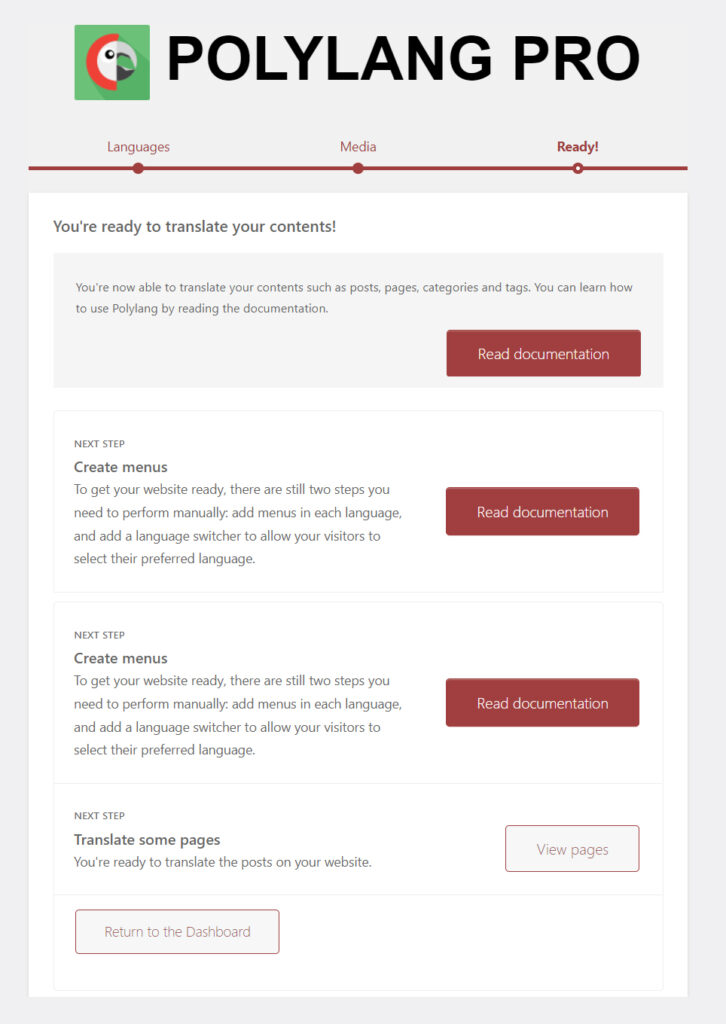
You will see a message stating, “You’re ready to translate your content.” You can review the documentation for further details or return to the dashboard.
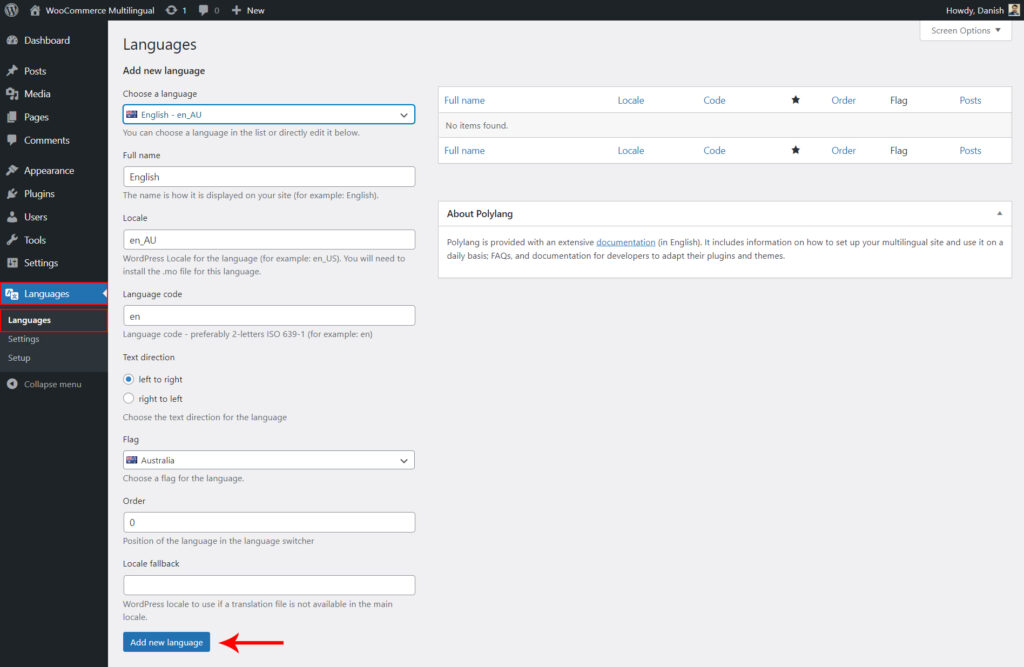
Go to Languages in the WordPress dashboard to configure the plugin. In the Languages tab, you can add new languages and set the default one. Select the language, choose the text direction and flag, then click Add New Language.
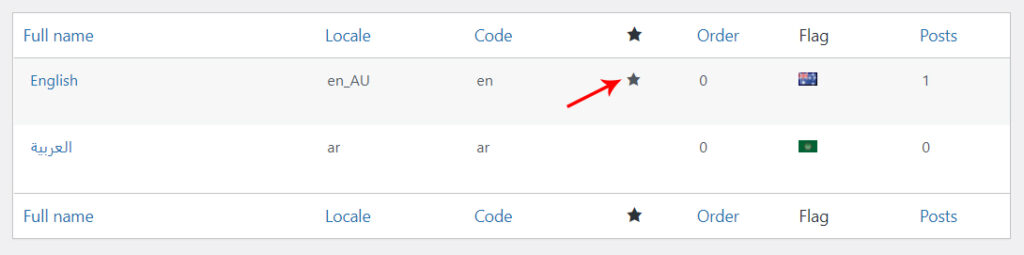
The star icon indicates the default language of your WooCommerce store. You can change the default language by clicking the star icon.
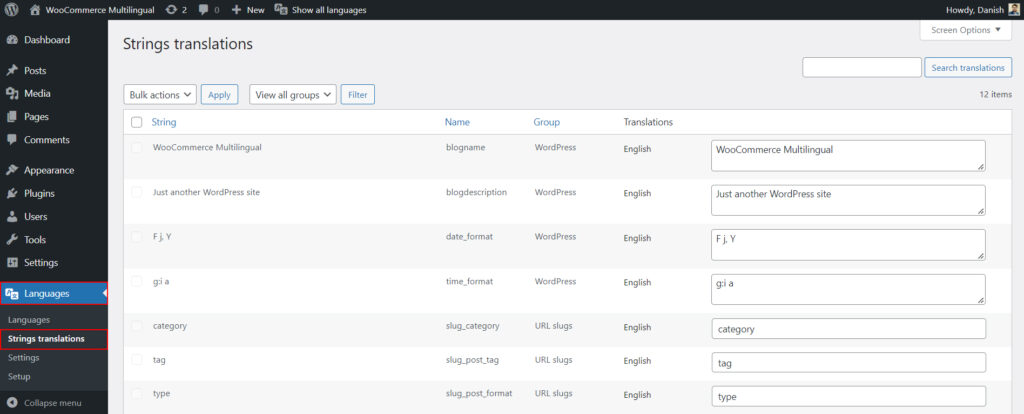
The String Translations section, located in the Languages tab, allows you to translate elements such as the site title and description. You can also select the preferred date and time format. Once configured, click Save to apply the changes.
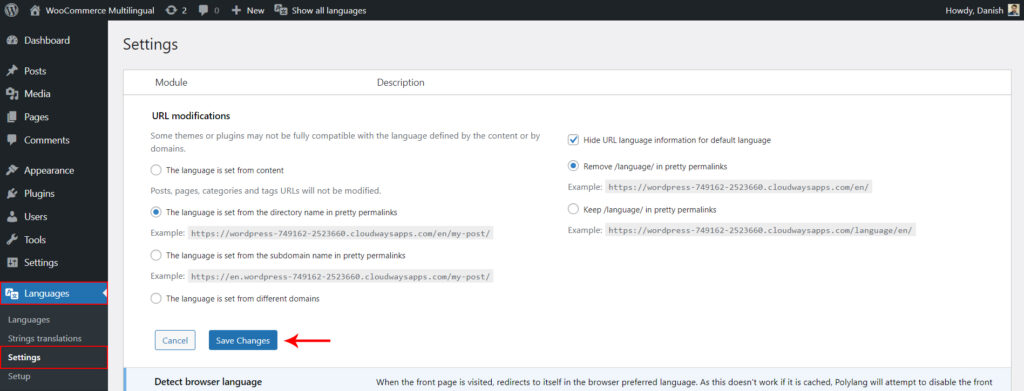
The third section in the Languages tab is Settings. Here, you can configure URL options, select how languages appear in your links, and choose whether to place the language code at the beginning or the end of the URL.
Once the configuration is complete, you can start translating your WooCommerce store content with Polylang. On the edit screen for pages and posts, you will see a language switcher box displayed on the right-hand side.
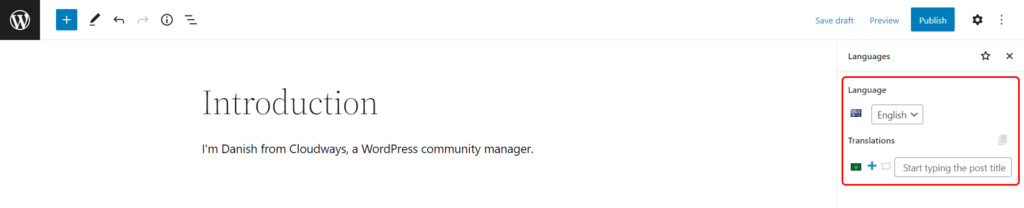
- The default language is already selected, so you can first create content in the default language and then translate it into other languages.
- Click the plus (+) button to add content in the selected language.
- If you have multiple languages, repeat the process for each one and publish your posts and pages accordingly.
Displaying Language Switcher on Your WooCommerce Store
Once you have completed the plugin configuration, the next step is to display the language switcher on the front end of your website:
- Go to Appearance → Widgets and click the plus (+) button.
- Search for the language switcher widget.
- Add it to your sidebar or any widget-ready area.
- Configure the available options based on your preferences.
- Click Update to save the changes.
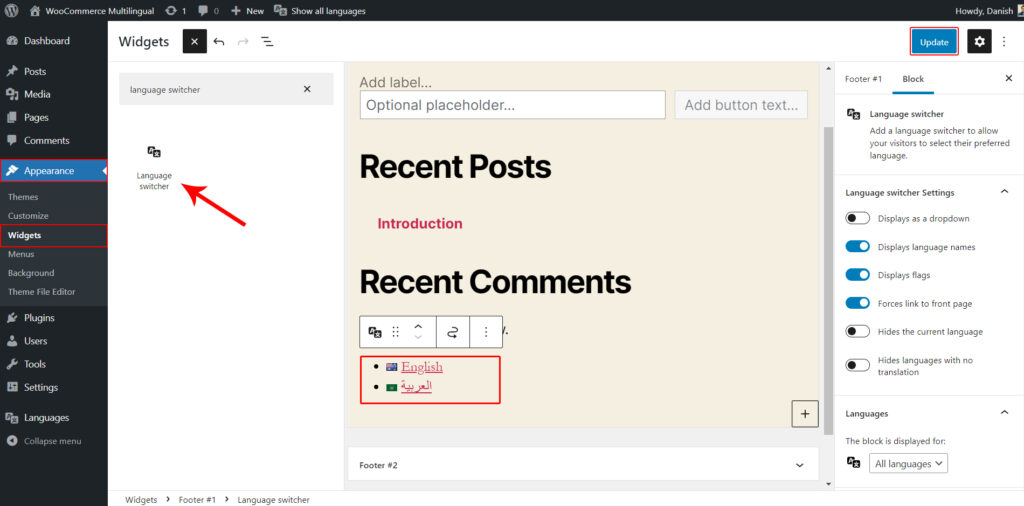
Visit the front end of your website to see the language switcher in action.
Weglot Translate
Weglot is one of the leading translation plugins for WordPress, supporting over 110 languages and trusted by more than 60,000 users. It enables you to add multilingual functionality to your WooCommerce store and expand its global reach.
The following section will walk you through its configuration.
System Requirements and Details
- Version: 3.6.1
- Active installations: 40,000+
- WordPress Version: 4.5 or higher
- PHP Version: 5.6 or higher
- Tested up to: 5.9.2
Install and activate the plugin. After activation, a Weglot menu will appear in the left-hand WordPress admin panel. Click the Weglot menu to access the Main Configuration page.
To use the plugin, you will need a Weglot API key. Create an account on Weglot to obtain one. Once your account is set up, you can find your API key in the Weglot dashboard.
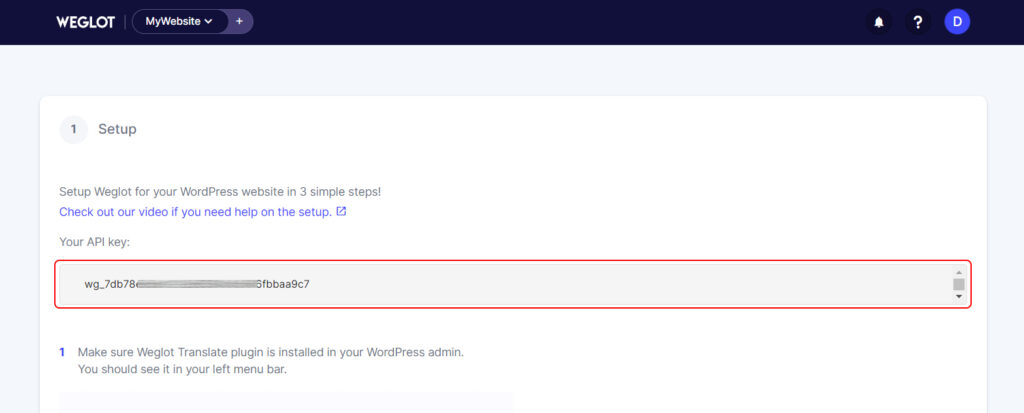
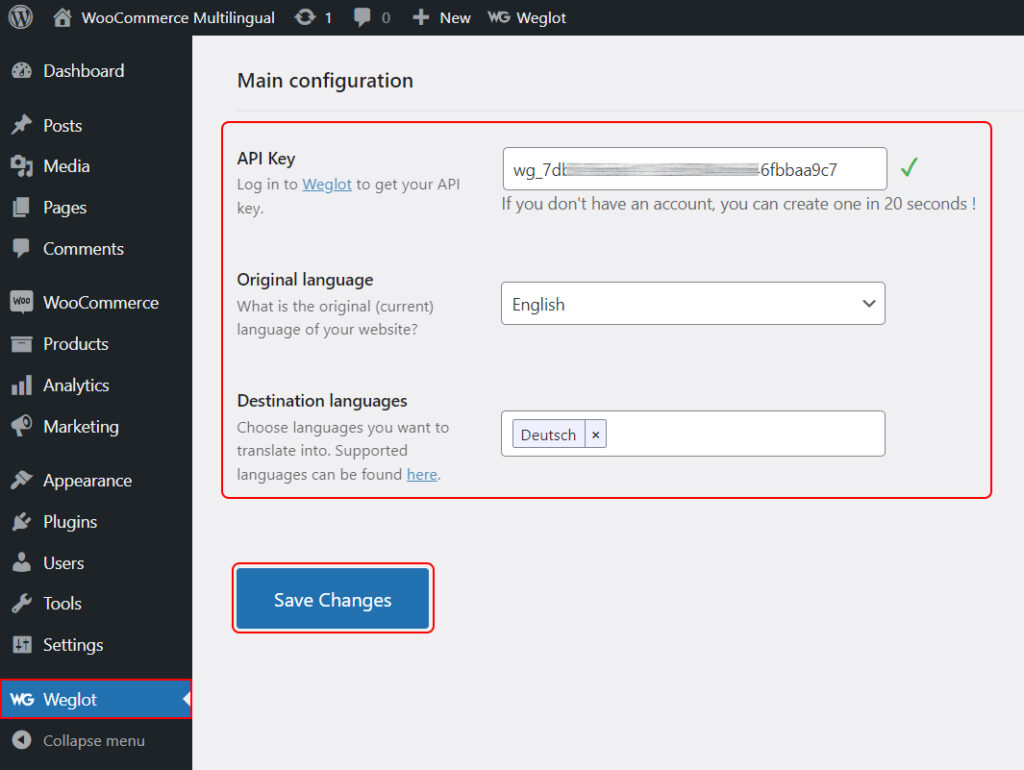
- Copy the API key from the Weglot dashboard, then go to WordPress Dashboard → Weglot and paste it into the required field.
- Select the original language and destination languages for your WooCommerce store.
- Click Save Changes to apply the configuration.
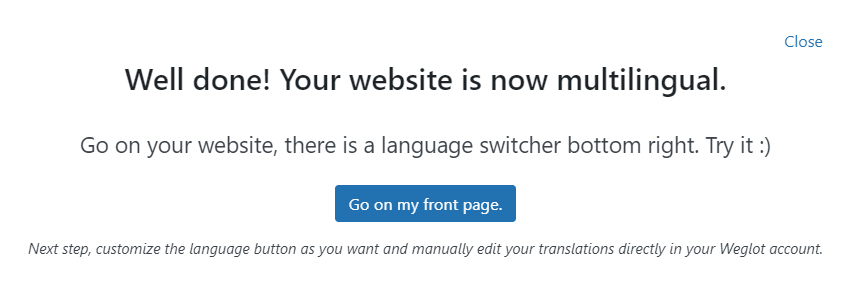
You will see a welcome message from Weglot stating, “Well done! Your website is now multilingual.”
Go to the front end of your WooCommerce site, and you will see a language switcher displayed in the bottom-right corner.
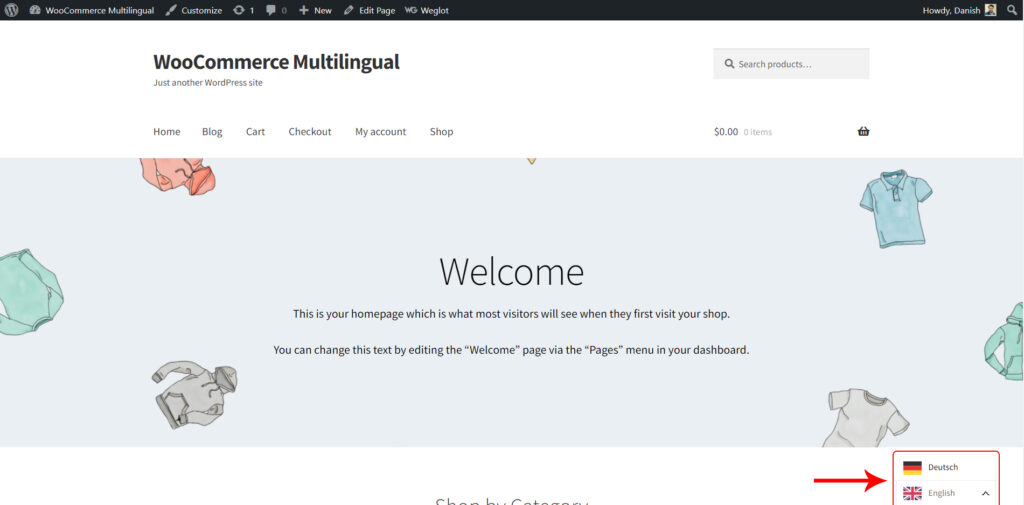
Click the language switcher and select your preferred language. Your store will then be automatically translated into the selected language.
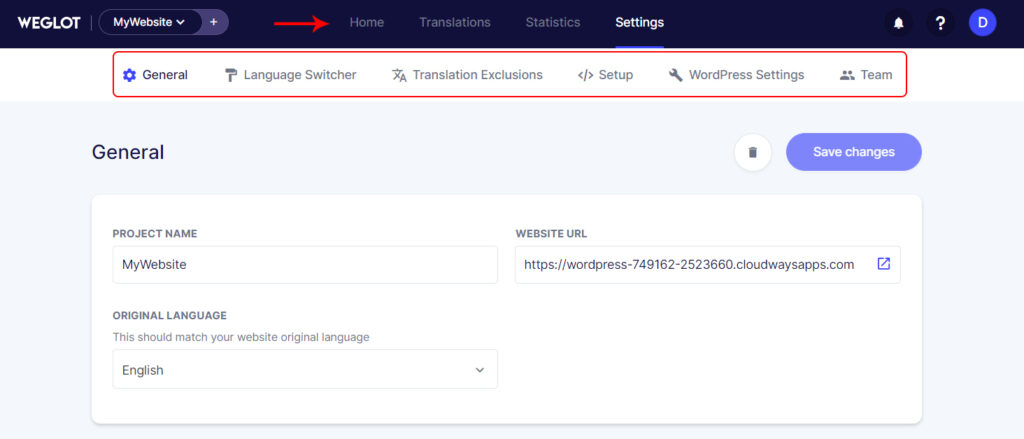
You can also customize your translations using the various options available in the Weglot dashboard.
TranslatePress
TranslatePress is a widely used multilingual plugin for WooCommerce that allows you to translate your entire store—not just product pages directly from the front end. The following section outlines how to configure it for your WooCommerce store.
System Requirements and Details
- Version: 2.2.3
- Active installations: 200,000+
- WordPress Version: 3.1.0 or higher
- PHP Version: 5.6 or higher
- Tested up to: 5.9.2
Install and activate the TranslatePress plugin using the method described earlier. Once activated, go to WordPress Settings and select TranslatePress.
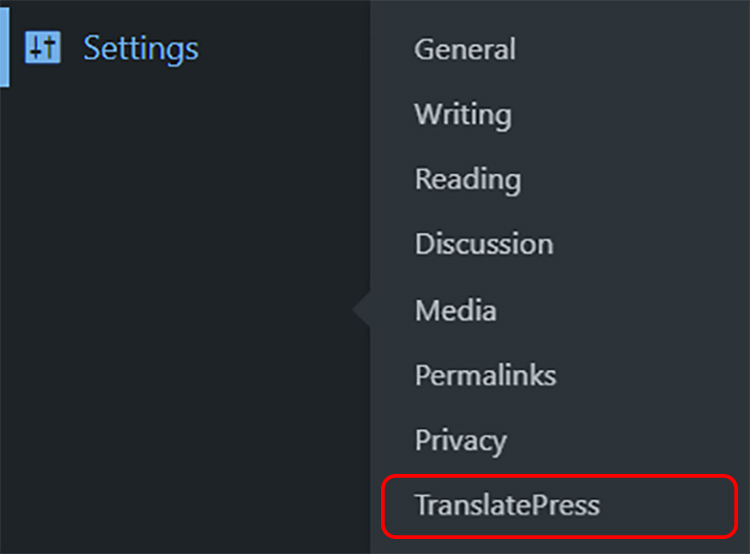
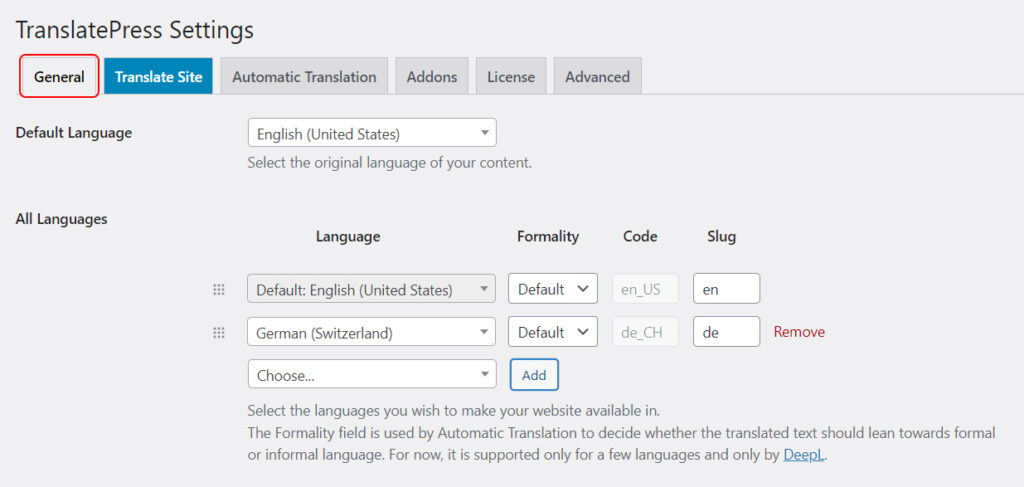
Under the General tab, you can select the default language and add any additional languages you want to use for translating your site content.
Scroll down to configure the basic settings, including the language switcher options.
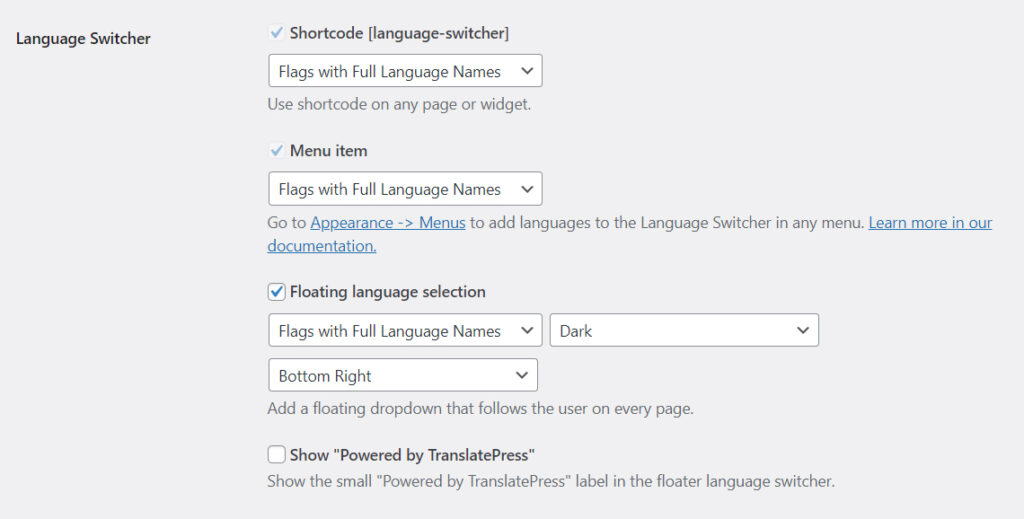
- Click Save once you have completed the configuration.
- After setting up the languages, you can begin translating your site using two methods.
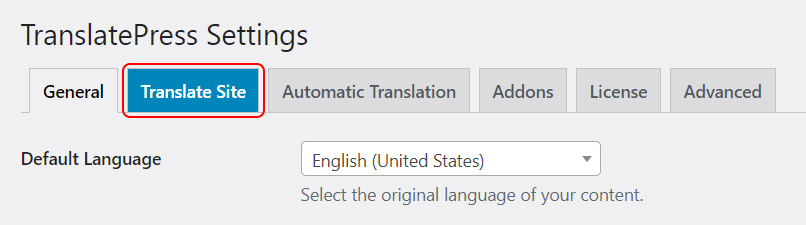
- The first method is to go to Settings → TranslatePress.
- Click the Translate Site tab and select the appropriate options.
- The second method is available from the top navigation bar of your WordPress site.
- Open any page on your site and click the Translate Page button.
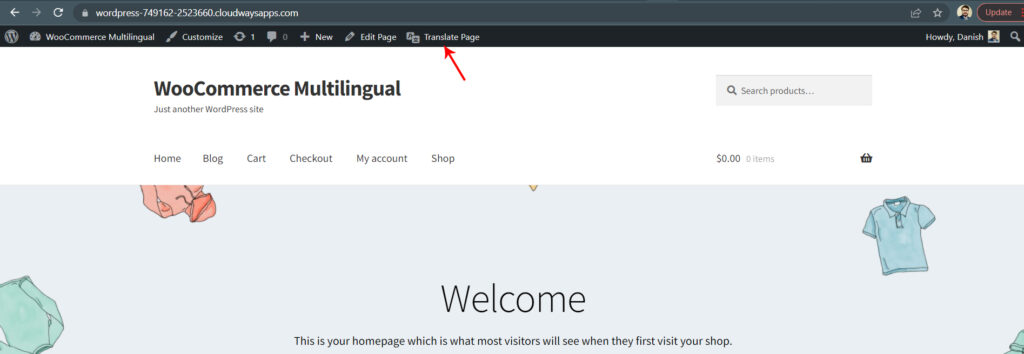
Once you click the Translate Page button, you will be redirected to the translation interface, where you can configure settings and translate your WooCommerce store.
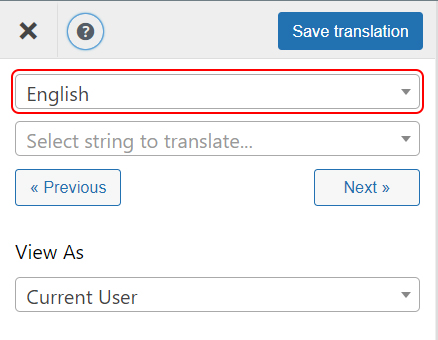
The drop-down menu displays the default language. It is recommended to switch to the target language so you can easily identify which content has already been translated.
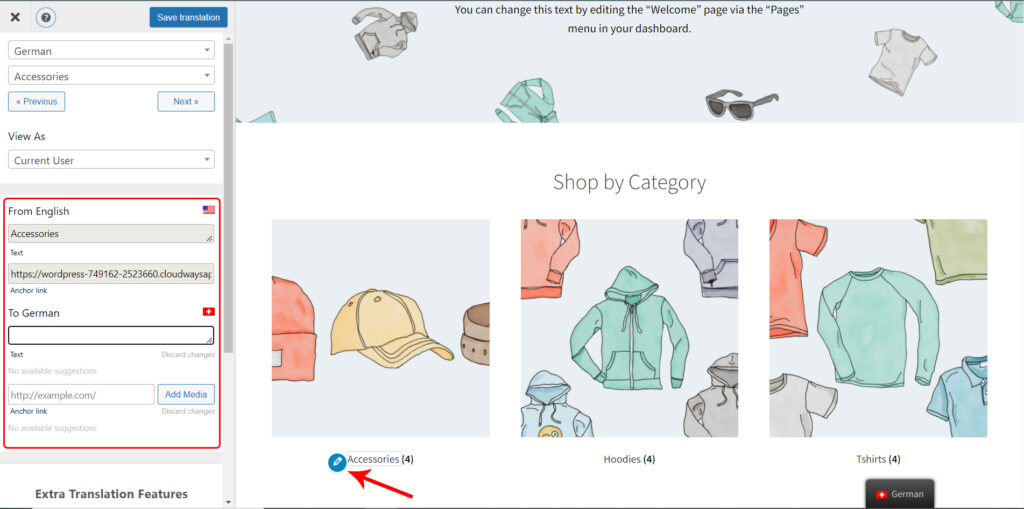
You will see a blue pencil icon next to the text. Click the icon to display the corresponding content in the left panel.
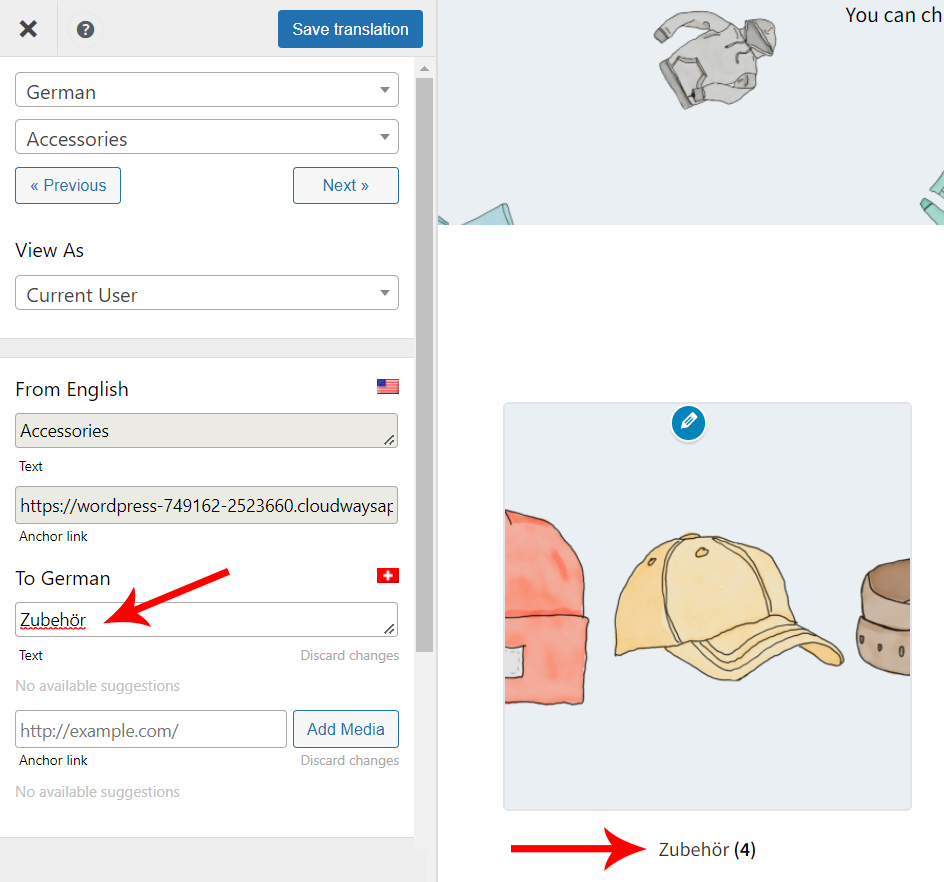
Enter the translation in the text box and click Save translation. The content will automatically update and display the translated text.
There are two types of text: user-generated content and gettext strings generated by WordPress themes or plugins. Click the green pencil icon to translate dynamic and variable strings in WooCommerce.
Frequently Asked Questions
1. What is the best plugin for a WooCommerce multilingual setup?
The best plugin depends on your needs, but WPML, TranslatePress, Polylang, and Weglot are among the most popular choices.
2. Can WooCommerce support multiple languages by default?
No, WooCommerce does not provide built-in multilingual functionality. To create a multilingual store, you need to use a dedicated plugin that allows you to translate products, pages, and other store content.
3. How many languages can I add to my WooCommerce store?
Most multilingual plugins allow you to add multiple languages, often without strict limits. However, adding more languages may increase the complexity of managing content and maintaining performance, especially for large stores.
4. Does a multilingual WooCommerce store affect SEO?
Yes, a multilingual WooCommerce store can positively impact SEO if implemented correctly. Features like translated URLs, proper language structure, and hreflang tags help search engines deliver the right content to users in different regions.
5. Can I use automatic translation for my store?
Yes, many plugins offer automatic translation features to quickly translate your content. However, it is recommended to review and refine these translations to ensure accuracy, cultural relevance, and consistency with your brand voice.
Conclusion
Setting up a WooCommerce multilingual store is an effective way to reach a global audience and improve your store’s performance. By choosing the right plugin and properly configuring languages, content, and SEO elements, you can create a seamless shopping experience for customers in different regions.
If you’re looking for expert support, Arestós provides professional WooCommerce services, including multilingual setup, performance optimization, and security solutions tailored to your business needs.
Ready to take your WooCommerce store to the next level? Contact us today to get started.
Subscribe to our newsletter!
Get updated to
the lastest IT trends
Related Posts
Update the latest technology trends for your business