Back to featured insights
How to Convert Joomla to WordPress: A Complete Guide
This guide explains how to convert Joomla to WordPress in a structured and practical way. You’ll learn what to prepare before migration, key steps involved in the process, and how to move your website content safely while maintaining structure and SEO performance.


Table of Content
Share
Convert Joomla to WordPress is a common solution for website owners looking to move their content to a more flexible and user-friendly CMS. This migration can help improve content management, simplify maintenance, and support long-term website growth.
It is especially relevant for businesses, developers, and site administrators who are currently using Joomla and considering a more scalable platform. In this guide, you’ll learn how to migrate from Joomla to WordPress step by step while minimizing risks and preserving your website structure.
What is WordPress?
WordPress is an open-source content management system (CMS) used to create and manage websites. It provides a structured platform where content such as pages, posts, media files, and menus can be organized and published through a web-based interface.
At its core, WordPress works by storing content in a database and displaying it through themes, while additional functionality is added through plugins. Users interact with WordPress via an administrative dashboard, where they can control website content and basic settings without directly editing code.
For a broader comparison with other platforms, see our guide: CMS WordPress vs Other CMS Platforms: A Selection Guide

Why You May Want to Migrate From Joomla to WordPress
Joomla is a capable content management system that offers flexibility and advanced configuration options. It is often used for websites that require structured content and custom functionality. However, Joomla’s interface and management workflow can feel complex, especially for users without a technical background.
As a website grows, maintaining a Joomla site may require more technical effort, from managing extensions to handling updates and compatibility issues. Content creation and daily website management can become less efficient, particularly for teams that need a simpler and faster publishing process.
WordPress is often chosen as an alternative because it provides a more streamlined content management experience while maintaining flexibility. Migrating from Joomla to WordPress allows website owners to manage content more easily within a modern CMS environment that supports long-term scalability and ongoing development.
See how WordPress compares to other platforms and why it remains the top choice:
Things to Prepare Before Converting Joomla to WordPress
Before starting the migration process, preparing your website and data properly can help reduce errors, data loss, and SEO issues.
- Create a full backup of your Joomla website: Back up both files and database to ensure your content can be restored if any issues occur during migration.
- Review Joomla extensions and components: Identify which extensions are essential and check whether equivalent WordPress plugins are available.
- Audit your website content and structure: Take note of important pages, categories, and menu structures that need to be preserved after migration.
- Check hosting and server compatibility: Make sure your hosting environment supports WordPress requirements, including PHP version and database configuration.
- Plan your WordPress URL and permalink structure: Decide how URLs should be structured to minimize changes and reduce SEO impact.
- List critical URLs and SEO elements: Identify pages with high traffic, backlinks, or rankings that require special attention during migration.
How to Migrate From Joomla to WordPress in 9 Steps
The following steps provide a clear overview of the Joomla to WordPress migration process, helping you move your website content in an organized and controlled way.
- Step 1: Set Up WordPress
- Step 2: Back Up Your Joomla Site
- Step 3: Migrate Your Joomla Content
- Step 4: Enter Your Joomla Database Parameters
- Step 5: Import Your Joomla Content
- Step 6: Choose a New WordPress Theme
- Step 7: Set Up Permalinks
- Step 8: Repoint Your Domain
- Step 9: Become a WordPress Expert
Each step below focuses on a specific part of the migration to ensure accuracy and consistency.
Step 1: Set Up WordPress
Before migrating any content, WordPress must be installed on your server.
Manual installation involves downloading WordPress, uploading the files to your server, creating a database, and completing the setup through the installation wizard. This option offers more control and is commonly used in custom server environments.
Hosting-based installation uses a one-click installer provided by most hosting providers, allowing WordPress to be set up automatically with minimal configuration. This option is faster and suitable for users who prefer a simplified setup process.
Step 2: Back Up Your Joomla Site
To reduce the risk of data loss during the migration, it’s important to secure a complete copy of your Joomla site in advance. Having a backup allows you to restore your website quickly if anything goes wrong while transferring content to WordPress.
One common way to do this is by using a dedicated Joomla backup extension, such as Akeeba Backup, to generate a full site archive.

Once the extension is installed, navigate to the Home Dashboard from the Joomla admin sidebar. In the Notifications area, you should see a new message indicating that your backup status is up to date.

Click on this notification to proceed. If this is your first time opening Akeeba Backup, Joomla will prompt you to complete the initial configuration for the extension.
When the setup screen appears, choose Configuration Wizard, which automatically handles the required settings for you.

The wizard will analyze your server environment and automatically adjust the backup settings based on performance tests. After the configuration process finishes, select Backup Now to start creating the site backup.

You can assign a name to the backup and include an optional description for reference. Once everything looks correct, click Backup Now to begin the backup process.

After the extension has been set up, you can generate a backup whenever needed. From the Joomla admin panel, go to Components > Akeeba Backup > Backup Now to start the process.

Step 3: Migrate Your Joomla Content
From the WordPress admin dashboard, go to Tools > Import, then locate the Joomla (FG) importer and select Run Importer to proceed.

The next screen shows the items stored in your site’s database, including categories, posts, pages, media files, and tags. Even on a newly installed WordPress site, you may see default content such as a sample page or a predefined category.

In most cases, it’s best to import Joomla data into a clean WordPress installation. To prepare the site, you can use the Empty WordPress content option to remove any existing data.
Keep in mind that this action permanently deletes all current WordPress content and cannot be undone. If there is anything you want to keep—such as categories, pages, posts, media files, or tags—make sure to create a backup first.
When you’re ready, choose Remove all WordPress content, then confirm by clicking Empty WordPress content. After the process finishes, the plugin will display a confirmation message indicating that the site has been cleared successfully.

At this point, the counts for posts, pages, media, and tags should all be zero. WordPress always includes a default Uncategorized category, so the category total may still show one even after all other content has been removed.
Step 4: Enter Your Joomla Database Parameters
Next, you’ll need to provide your Joomla database details. Open your Joomla admin panel in a new browser tab, then use the left-hand menu to navigate to System.

From there, open Global Configuration, then switch to the Server tab to access the required settings.

Scroll down to the Database Settings section, where you’ll find details such as the database host, name, username, password, and table prefix.

These details are required to complete the data migration. Return to your WordPress admin area and scroll to the Joomla website parameters section. Locate the field labeled URL of the live Joomla website, then enter your Joomla site’s URL and choose to transfer the data via HTTP.

Next, click Test the media connection to verify that WordPress can access your Joomla media files and to detect any potential issues before the import begins.
If the test is successful, proceed to enter your Joomla database credentials. You’ll need to provide the following details: hostname, database name, database username, database password, and the Joomla table prefix.
You can retrieve each of these values from your Joomla admin panel and paste them into the corresponding fields in your WordPress dashboard.

The Joomla Global Configuration screen shows most of your database details, with the exception of the database password. If you no longer have this password, you can access your server via FTP using a client such as FileZilla.
Once connected, open your Joomla site’s root directory and locate the configuration.php file. This file contains the database password you need.
After entering all required database details in WordPress, click Test the database connection. WordPress will verify the credentials, and if the connection is successful, you can proceed with importing your Joomla content.
Step 5: Import Your Joomla Content
In your WordPress dashboard, scroll down to the Behavior section. This area includes all the options you’ll need to adjust and control how the import process works.

At this stage, you can select which types of content to migrate, including archived posts, media files, and meta keywords.
You can also define how media should be handled during the migration. For instance, importing only featured images can help reduce processing time and speed up the overall transfer.
Additionally, the plugin allows you to migrate Joomla intro text. This summary content can be imported as a WordPress excerpt, merged with the main post content, or transferred using both methods.
Once you’ve configured these options, scroll to the bottom of the page and click Start / Resume the import. The plugin will then begin transferring all selected content from Joomla and notify you when the process finishes.
Although your content may now be imported, some internal links might not work correctly after the migration. Broken links can hurt both user experience and SEO, especially by wasting crawl budget during search engine indexing.
Fortunately, the migration plugin includes a built-in tool to scan and fix broken internal links.

To run this check, simply click Modify internal links. The FG Joomla to WordPress plugin will then scan your site and update any broken URLs it finds.
Step 6: Choose a New WordPress Theme
WordPress includes a default theme out of the box, but it may not display your migrated Joomla content as expected. To review how your site looks, open it in a new tab and check the layout and functionality.
You can also preview individual pages or posts by going to Posts or Pages in your dashboard. Hover over the item you want to review and click View.

If the default design doesn’t meet your expectations, this is the right time to install a new theme. WordPress offers a wide range of themes, making it easy to find one that suits your migrated content.

To install a theme from the official WordPress repository, go to Appearance > Themes in your dashboard. Click Add New to browse and choose from the available themes.

Once a theme looks promising, hover over it and click Preview to see how your site will appear with that design applied.
When evaluating themes, be sure to check the average rating and read user reviews—especially the most recent ones. Even if a theme has a high overall rating, a spike in negative feedback can indicate issues introduced in a recent update.

Since a large portion of users browse on mobile devices, it’s essential to choose a theme that’s fully responsive and mobile-friendly—especially if you’re running an online store.
Once you’ve found the right theme, click Install and then Activate. Your migrated Joomla content will now be displayed using the new WordPress theme.
Step 7: Set Up Permalinks
Permalinks are the permanent URLs used to access your pages and posts, helping both users and search engines find your content. Once set, these links are meant to stay consistent over time.
Although permalinks can be changed later, doing so may cause broken links and negatively affect your SEO. For this reason, choosing the correct permalink structure is a key step when setting up a new WordPress site.
WordPress offers six built-in permalink structures. To review and select one, go to Settings > Permalinks in your dashboard.

By default, WordPress uses the Plain permalink structure, which creates ID-based URLs like “mywebsite.com/?p=123”. This format doesn’t provide meaningful information to users or search engines, making it less effective for both usability and SEO.
For better results, we recommend switching to the Post name structure. This option generates URLs based on your page or post titles, resulting in cleaner, more readable links that are easier to understand and more SEO-friendly.
To apply this change, select Post name and then click Save Changes.
Step 8: Repoint Your Domain
Once your WordPress site is ready, the final step is to point your domain to the new hosting server. This ensures visitors are directed to your WordPress website instead of the old Joomla installation.
Depending on your setup, this may involve updating your domain’s nameservers or modifying DNS records. Most hosting providers offer a control panel where you can manage these settings easily. After making the changes, DNS updates may take some time to propagate, so your site might not switch instantly.
Step 9: Become a WordPress Expert
WordPress is built to be intuitive and easy to use, but learning a new platform can still come with a learning curve. In these cases, guidance from reliable resources can make a big difference.
Thankfully, WordPress offers plenty of learning materials for beginners and advanced users alike. A great place to start is the official WordPress Codex, which includes a comprehensive Learn to Use WordPress section designed to help new users get up to speed.

What to Do After Migrating From Joomla to WordPress
With the migration complete, you can now move on to setting up and refining your WordPress website. Before diving into customization, it’s best to take care of a few essential steps first.
Check for Broken Links
After migrating from Joomla to WordPress and updating your permalinks, some links may no longer work. To keep visitors on the right pages, it’s important to identify and fix broken URLs.
A simple way to start is by using a plugin like Broken Link Checker. This free tool scans your site for dead links and lets you edit them directly from a dedicated page.
You can also use an SEO tool such as Google Search Console to find pages returning 404 errors, helping you address broken links systematically.

Set Up Redirects
Once broken links are identified, you may need to set up redirects so visitors reach the correct pages. A popular option is the Redirection plugin, which handles 301 redirects and tracks 404 errors on your site.
If your site is hosted on Hostinger, you can also create redirects through hPanel. In your Hosting Account dashboard, go to Domains and then select Redirects to configure them.
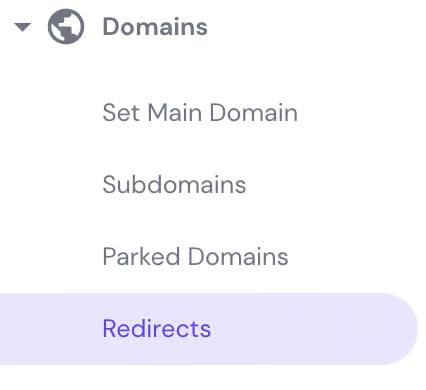
Enter the original URL path in the Redirect field and the new URL or IP address in Redirect to. Click Create and wait a few minutes for the changes to propagate.

Select and Customize a Theme
Choosing a suitable theme is crucial for your WordPress site’s appearance and usability. A well-selected theme ensures your content is presented clearly, looks professional, and works well across all devices. You can explore a detailed Step-by-Step Guide: Installing and Customizing Creative WordPress Themes for theme setup.
For inspiration, check out theme collections like 15 Best WordPress Real Estate Themes for Hong Kong Realtors or Top 10 WordPress E-Commerce Templates For Electronics & Gadgets.
Install Essential WordPress Plugins
Here are the main types of plugins you should consider for a fully optimized WordPress site.
SEO Plugins
Plugins like Yoast SEO or Rank Math help you optimize your content for search engines while improving readability. They make it easy to manage meta descriptions, keywords, and sitemaps, giving your site a stronger SEO foundation.
Backup Plugins
Tools such as UpdraftPlus or All-in-One WP Migration create scheduled backups of your website, protecting your content from accidental loss. Regular backups ensure you can restore your site quickly if any issue arises. Explore more top backup solutions in 10 Best Backup Plugins WordPress for Hong Kong Websites.
Caching & Performance Plugins
WP Rocket or W3 Total Cache improve site speed by caching pages and optimizing resources. Faster load times enhance user experience and can boost your SEO rankings simultaneously.
Contact & Form Plugins
Plugins such as Contact Form 7 or WPForms allow you to create custom forms for inquiries, feedback, or lead generation. They make it easy to interact with visitors and gather essential information. You can also learn how to create highly effective forms in our guide: How to Create the Best Contact Form for WordPress in Hong Kong
Popup Plugins
WordPress popup plugins such as Popup Maker or OptinMonster allow you to create promotional popups, subscription forms, or announcements. They help capture leads, boost conversions, and engage visitors effectively. For more options, check out 10 Best WordPress Popup Plugins for Hong Kong Websites
Security Plugins
Plugins like Wordfence or Sucuri protect your site from malware, hacking attempts, and other security threats. They monitor suspicious activity and keep your WordPress installation safe from vulnerabilities.
You can also check out some other must-have plugins in WordPress Plugins: Top 10 Must-Have Plugins For Your Site.
Customize the Web Design
Finally, pay attention to your website’s design. An attractive and easy-to-navigate site creates a strong impression for visitors and potential customers.
Here are some key tips for effective web design:
- Look for references: Find websites similar to yours for inspiration, or explore platforms like Awwwards for creative ideas.
- Prioritize mobile-first design: With most users on smartphones, a mobile-friendly site prevents losing potential visitors.
- Keep it simple: Avoid cluttered layouts to improve readability and speed up page loading.
- Learn basic coding: Understanding HTML and CSS can help you make small but effective design improvements.
Frequently Asked Questions
1. How long does it take to migrate from Joomla to WordPress?
The duration depends on your website size and complexity. Small websites can be migrated in a few hours, while larger sites may take several days.
2. Will I lose my SEO rankings after migration?
If you implement proper 301 redirects, preserve URLs, and migrate meta data, your SEO rankings can remain intact.
3. Is it better to migrate manually or use a plugin?
Manual migration gives more control but takes longer. Using a plugin like FG Joomla to WordPress is faster and simpler for most websites.
4. Can I migrate Joomla extensions to WordPress?
Not directly. You will need to find equivalent WordPress plugins or custom solutions for functionalities that existed in Joomla.
5. Do I need technical skills to migrate Joomla to WordPress?
Basic technical knowledge is helpful, especially for manual migration. Otherwise, professional migration services can handle the process for you.
Conclusion
Migrating from Joomla to WordPress can help simplify website management while creating a stronger foundation for long-term growth. With careful preparation and a structured approach, website content can be transferred efficiently without disrupting usability or structure.
At Arestós, we offer comprehensive WordPress services designed to support businesses at every stage, including website development, customization, optimization, and ongoing maintenance. Our focus is on building stable, scalable WordPress websites that align with business goals.
Looking for professional WordPress support? Contact us to explore how our WordPress services can help improve your website.
Subscribe to our newsletter!
Get updated to
the lastest IT trends
Related Posts
Update the latest technology trends for your business