Back to featured insights
How to Build a WordPress Plugin With AI Claude Code
Want to build a WordPress plugin faster without deep coding skills? This guide shows how to use Claude to create, customize, and launch plugins step by step, helping you turn ideas into real features with less effort.
Table of Content
Share
How to build a WordPress plugin with AI Claude Code is becoming a popular approach for faster and smarter development. It helps you save time, reduce manual coding, and quickly turn ideas into functional plugins.
This guide is ideal for developers, beginners, and agencies looking to streamline their WordPress workflow with AI. In this guide, you’ll learn step-by-step how to create, customize, and scale a WordPress plugin using Claude Code.
What is Claude Code & Why Use It to Build a WordPress Plugin?
Claude is an AI-powered coding assistant developed by Anthropic that helps developers write and understand code using simple natural language prompts. It can quickly generate plugin structures, functions, and features, making it easier to build WordPress plugins without starting from scratch
Using Claude Code for WordPress plugin development helps you save time, reduce manual coding, and simplify complex tasks. Compared to tools like ChatGPT, it is especially strong at handling longer context and multi-step logic, making it ideal for building more structured and scalable plugins.
You can also explore What is Claude Connector WordPress to understand how Claude connects with your site.
What You Need Before Building a WordPress Plugin with Claude
Before building a WordPress plugin with Claude Code, you must establish a secure development environment and a clear technical foundation.
Claude Code is a terminal-based AI assistant that directly modifies files, making proper setup essential to prevent breaking your site.
Essential Development Environment
Do not develop on a live website. You need a controlled space to test AI-generated code.
- Local WordPress Environment: Install a local server stack. Recommended tools include WordPress Studio for its integrated terminal or Local by Flywheel.
- Cloud Sandboxes: Alternatively, use InstaWP to spin up temporary, disposable WordPress sites in seconds for instant testing without local configuration.
- Version Control: Initialize a Git repository in your project folder. This allows you to track changes made by Claude and revert if the AI introduces errors.
Software & Account Requirements
Before getting started, make sure you have the necessary tools and accounts set up for a smooth development process.
- Node.js: Ensure you have Node.js 18+ (v20+ recommended) installed on your machine to run the Claude Code CLI.
- Claude Subscription: You need an active Anthropic account with access to Claude Code (typically requiring a Pro or Max plan).
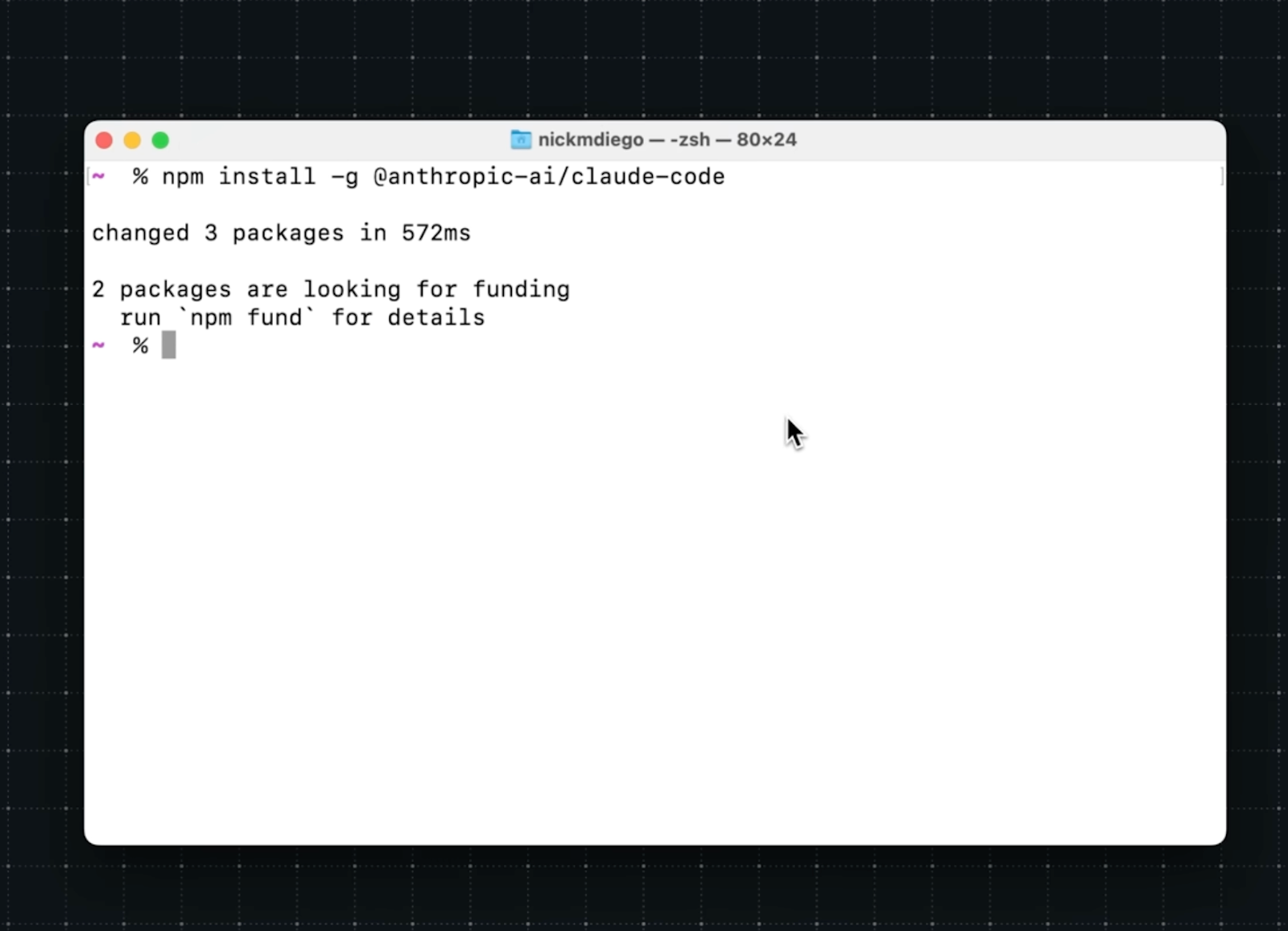
- CLI Installation: Install the tool via your terminal using npm install -g @anthropic-ai/claude-code or follow the official Anthropic Documentation.
Preparation & Contextual Foundation
AI accuracy depends on the context you provide. Prepare these files in your plugin root before starting:
- Define an MVP: Clearly list the “must-have” features for your Minimum Viable Product to avoid over-complicating the initial build.
- Create a CLAUDE.md File: Use this file to store project-specific rules, such as your preferred PHP version (e.g., PHP 8.2), WordPress Coding Standards, and specific naming prefixes for your functions.
- Setup .claudeignore: Create this file to prevent Claude from scanning large, irrelevant directories like wp-admin, wp-includes, or node_modules, which saves tokens and prevents the AI from “hallucinating” changes to WordPress core files.
Basic Knowledge Prerequisites
While you don’t need to be an expert, basic familiarity with the following is crucial for reviewing AI output:
- WordPress Hook System: Understanding Actions and Filters helps you verify where the plugin interacts with WordPress.
- Security Best Practices: You must be able to spot if the AI missed essential Data Sanitization, Escaping, or Nonce Verification, as AI
- generated code is not always “shippable” by default.
Step-by-Step: Build a WordPress Plugin with AI Claude Code
Follow these 7 simple steps to go from idea to a fully functional WordPress plugin using Claude. Each step is designed to help you build, refine, and launch your plugin with confidence.
- Step 1: Define Your Plugin Idea
- Step 2: Install Claude Code
- Step 3: Install WordPress Studio
- Step 4: Start Claude Code
- Step 5: Build your first plugin
- Step 6: Activate and test
- Step 7: Keep building
Now, we’ll walk you through a simple step-by-step process to build a WordPress plugin using Claude.
Step 1: Define Your Plugin Idea
Before writing any code, start by clearly defining what your plugin is supposed to do. A well-defined idea will help Claude generate more accurate and useful results.
- Identify the main purpose: What problem does your plugin solve?
- Define core features: Focus on the must-have functionality for your first version (MVP)
- Keep it simple: Avoid adding too many features at the beginning
- Think about users: Who will use this plugin and how?
For example, your plugin could be a simple admin notice, an SEO helper, or a chatbot integration.
Step 2: Install Claude Code
Visit Claude Code and register for an account by selecting a paid plan that fits your needs.
Launch the installer from the setup page and follow the guided steps on your screen.
The setup process usually takes just a couple of minutes. Once it’s done, you can start using Claude Code right away.
Step 3: Install WordPress Studio
Download WordPress Studio — it’s free to use and available on both Mac and Windows.
Install the application, then set up a new site. You can name it anything you like, for example, “My WordPress Website.”
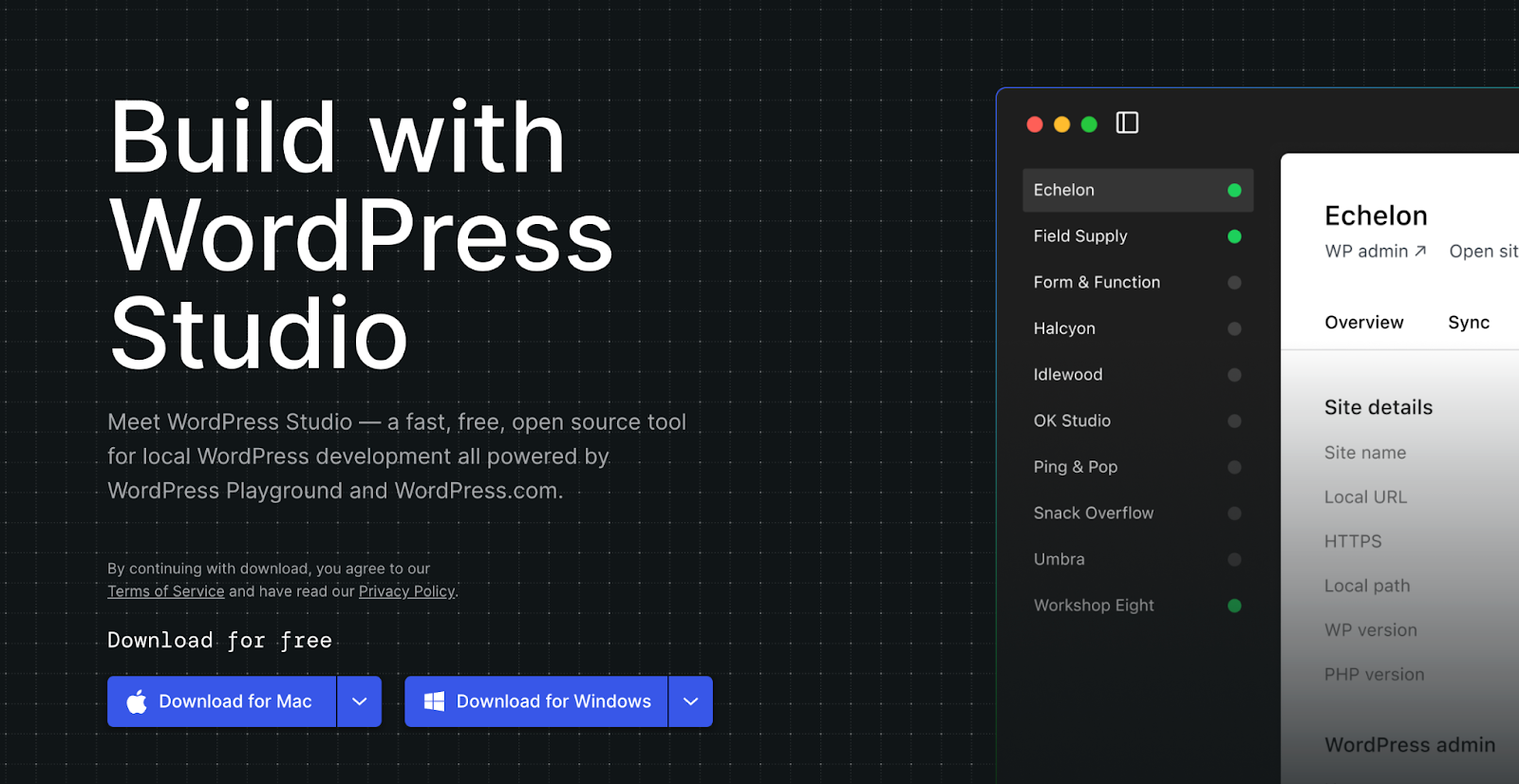
Since Studio runs locally on your computer, everything you create stays on your device — allowing you to safely test AI-generated plugins without affecting a live website.
Step 4: Start Claude Code
In the Overview tab of Studio, use the “Open in…” option and select Terminal. This will open a terminal window directly in your project directory.
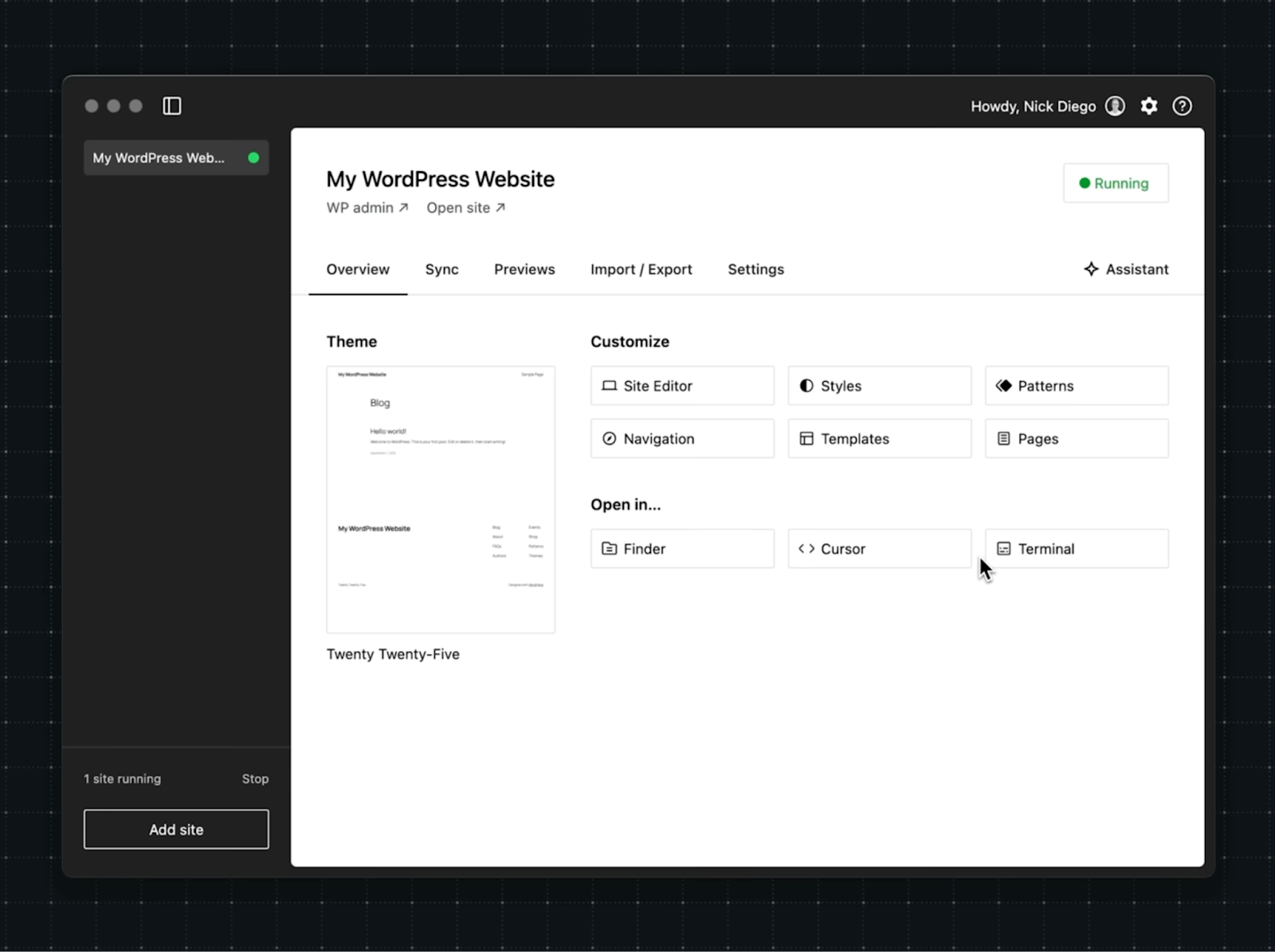
Next, type claude in the terminal. If this is your first time, you’ll be asked to sign in to your Claude account and verify that you trust this project folder.
Press Enter/Return to confirm, and the welcome message will appear once everything is set up.
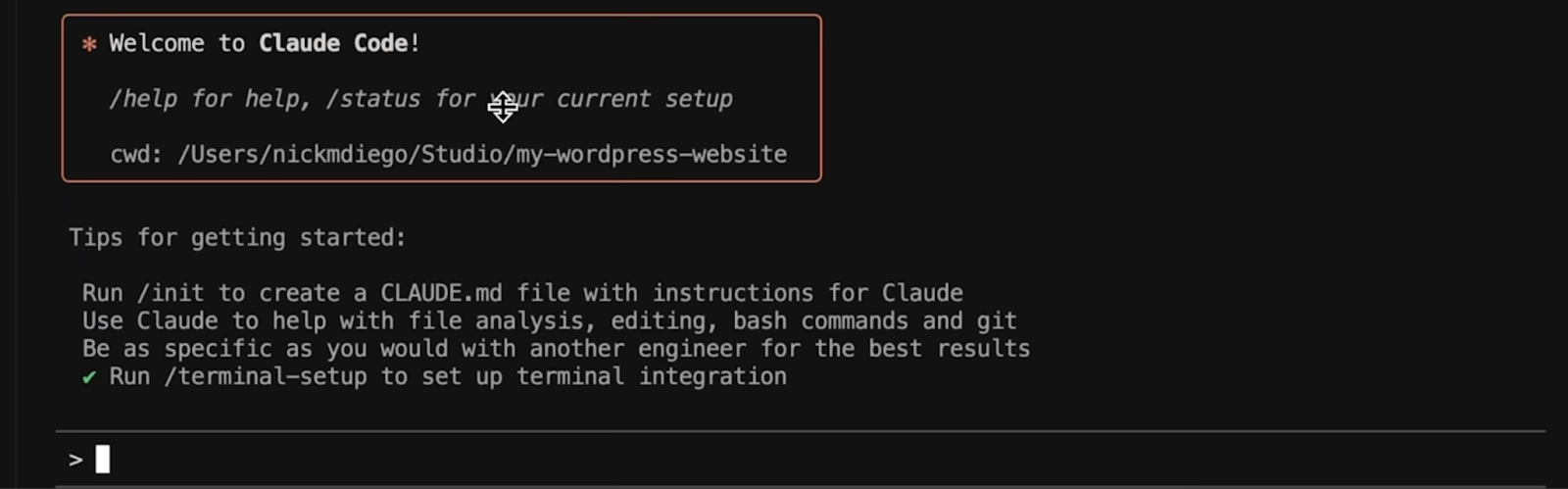
Step 5: Build your first plugin
In the Claude terminal, describe your request clearly and provide some context about your current setup and goals. For example:
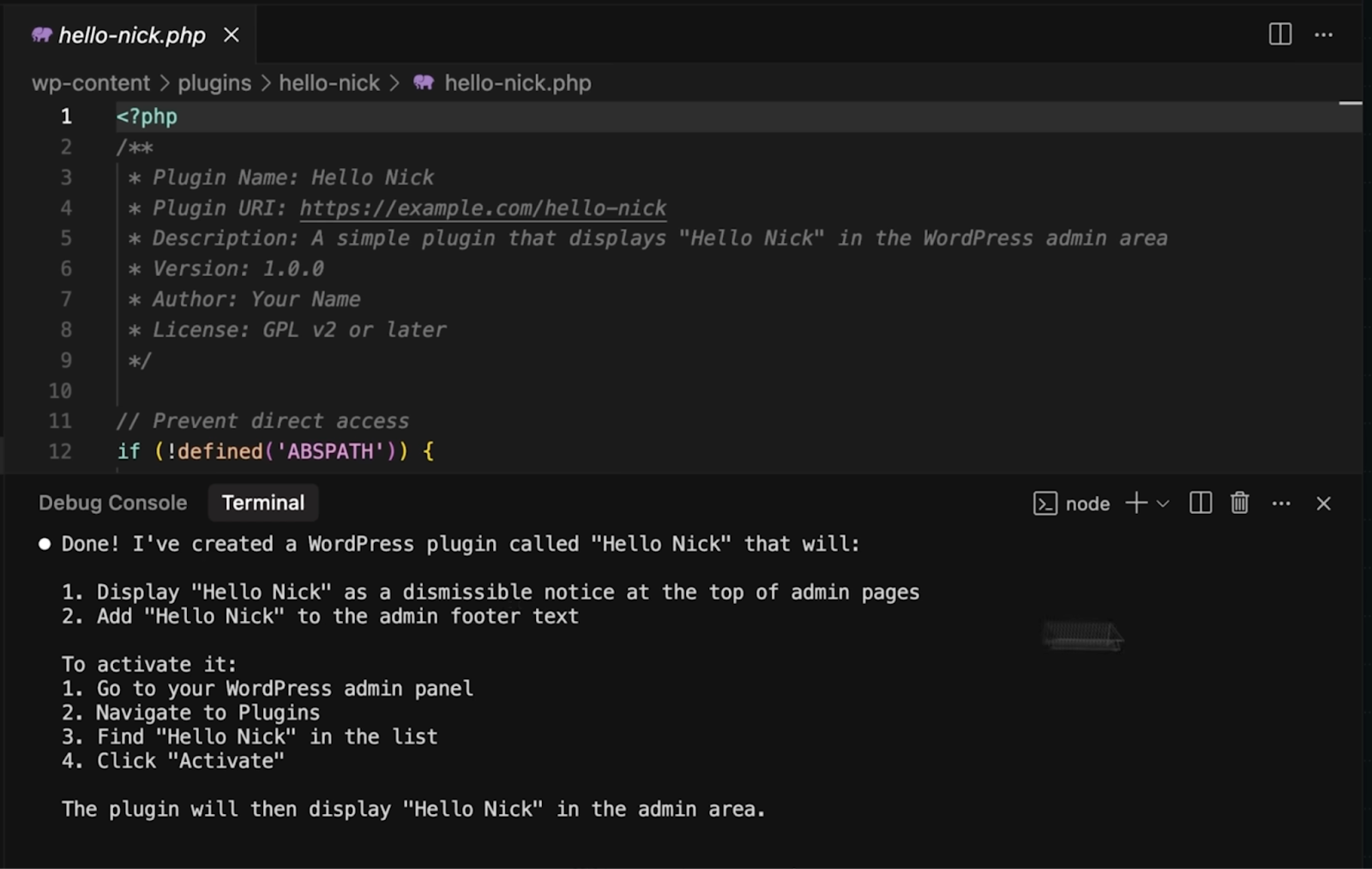
“We are in the root of the WordPress site folder. I want a simple plugin that prints out ‘Hello [Your Name]’ in the admin of the site.”
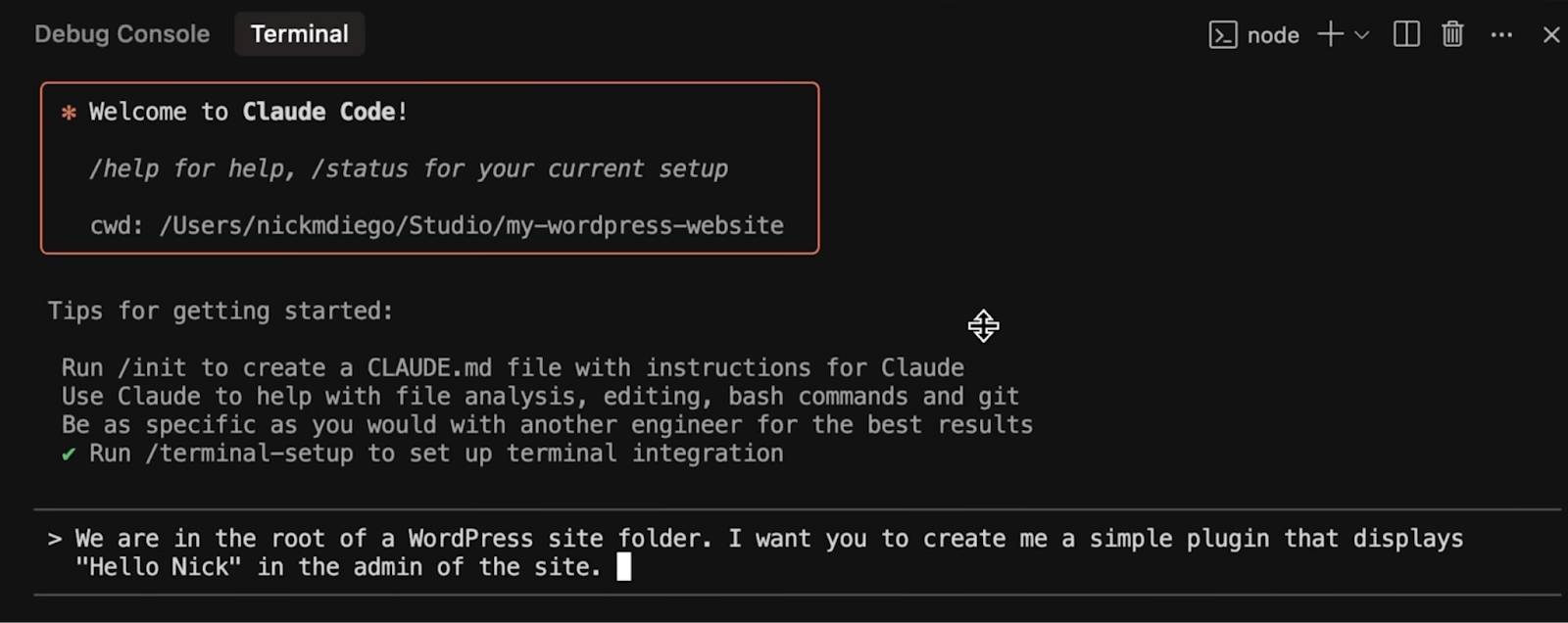
From there, Claude may ask a few follow-up questions, then proceed to create a plugin folder and generate a complete plugin file following the correct WordPress structure.
Step 6: Activate and test
Return to WordPress Studio and open your WordPress admin dashboard. Go to the Plugins section, locate your newly created plugin, and activate it.
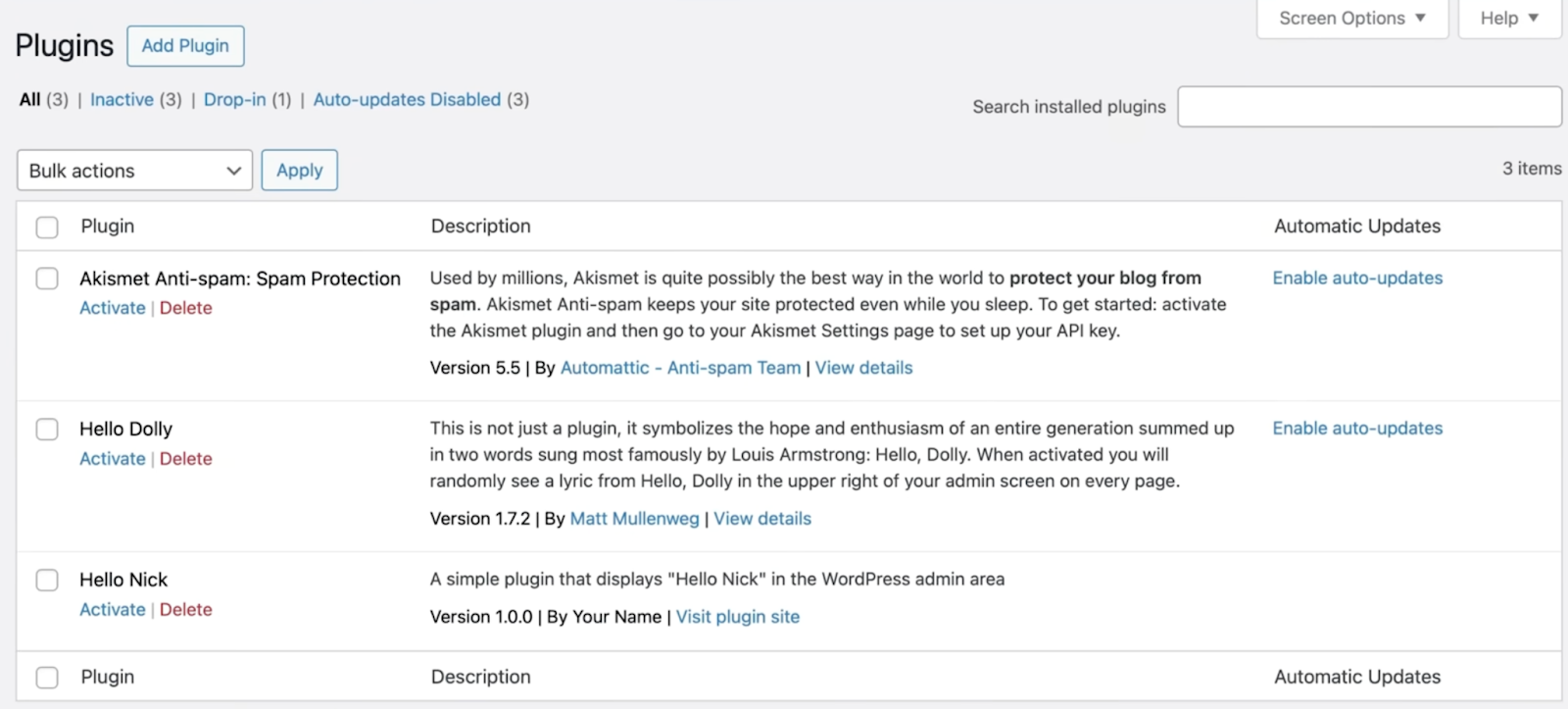
If everything is set up correctly, your custom message will appear at the top of the admin dashboard — for example, “Hello Nick” displayed as an admin notice.
If you didn’t customize the name, it may show “Hello admin.” You can update this by going to the Users section and editing your default username.

This is a very basic example, but it highlights how quickly you can build a plugin using Claude and WordPress.
Step 7: Keep building
From here, you can start expanding your plugin with additional features.
Return to the Terminal in your editor and ask Claude to add new functionality—such as settings pages, custom blocks, or anything else you need.
To get better results when working with AI:
- Provide clear context about your current file structure
- Be specific about the feature you want to build
- Break complex features into smaller, manageable steps
- Ask Claude to explain the code if anything is unclear
Bonus tip: Telex — an alternative for WordPress blocks
Telex is another useful tool that lets you create WordPress blocks using AI — and it’s completely free.
Simply describe the block you want, and Telex will generate it with a live preview directly in WordPress Playground.
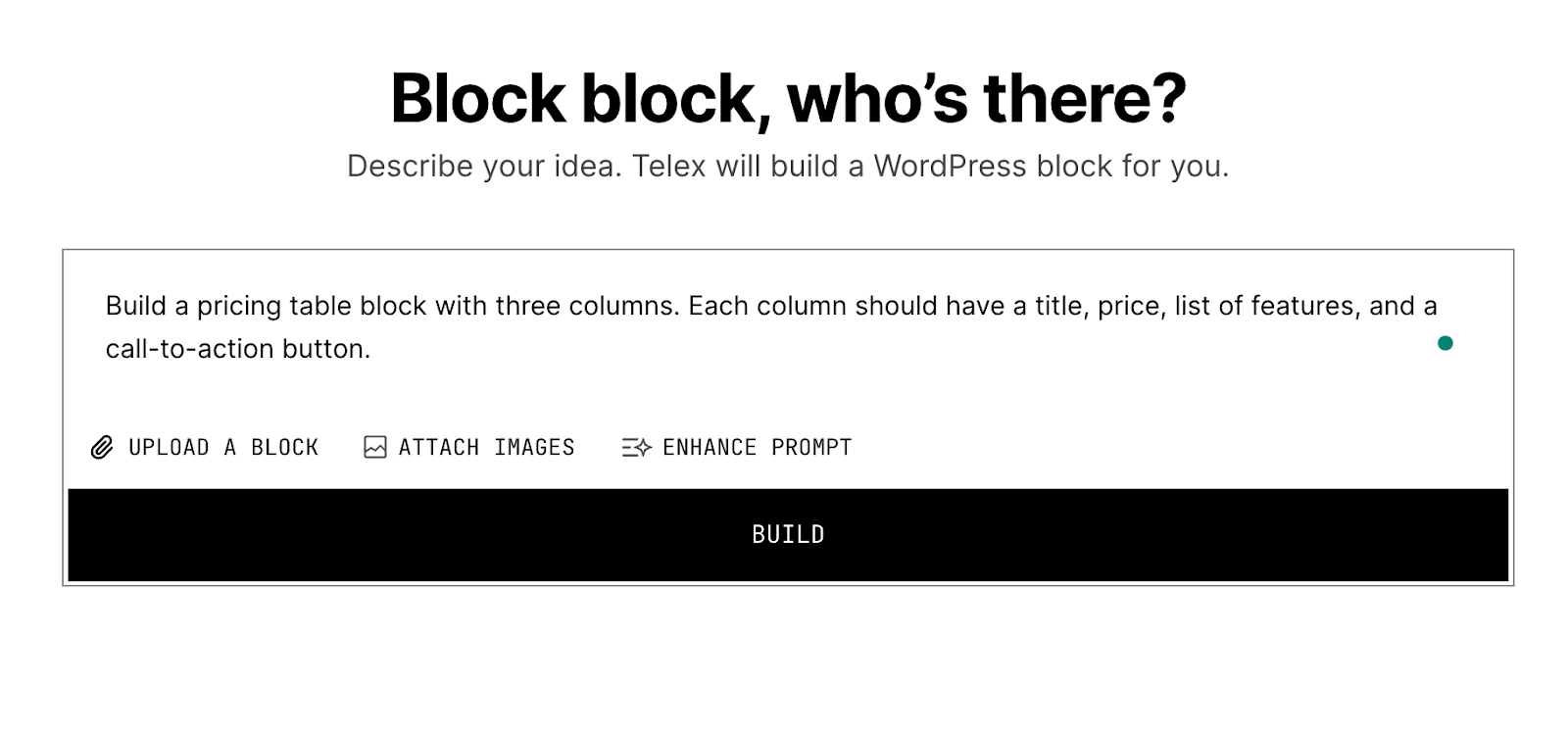
Test the result, refine it with follow-up prompts, then download it as a plugin and install it on your WordPress site.
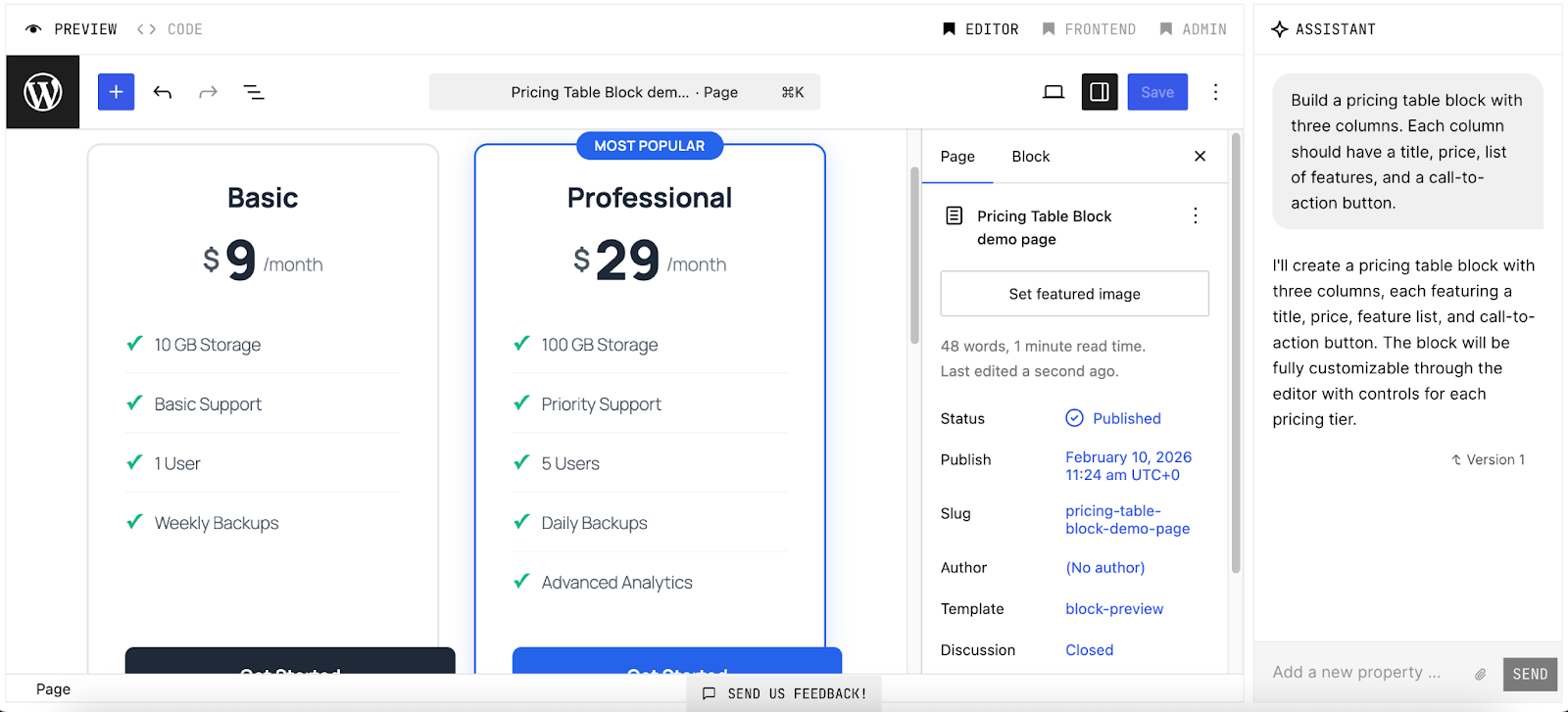
Test the result, refine it with follow-up prompts, then download it as a plugin and install it on your WordPress site.
If you want to explore more creative use cases, check out How to Generate a WordPress Theme with Telex for additional ideas and inspiration.
Future of AI in WordPress Development
As AI continues to evolve, it is rapidly transforming how developers build, manage, and scale WordPress websites. Below are the key trends shaping the future:
- AI-first development: AI is becoming the starting point for building plugins and websites, not just a supporting tool
- Faster coding: Tools like Claude and ChatGPT significantly reduce development time by generating and refining code instantly
- Smart plugins: AI-powered plugins can automate complex tasks such as SEO optimization, content generation, and customer support
- No-code/low-code: More users without technical backgrounds can build and customize WordPress solutions
- Better code quality: AI helps developers debug, test, and optimize code more efficiently, reducing errors
- Enhanced security: AI tools can detect vulnerabilities early and suggest fixes in real-time
- Personalization: Websites will deliver highly tailored user experiences based on AI-driven data insights
- API integration: Stronger integration between WordPress and AI services (chatbots, recommendation engines, automation tools)
- Developer role shift: Developers will focus more on strategy, logic, and reviewing AI outputs rather than writing everything manually
Frequently Asked Questions about Build a WordPress Plugin With AI Claude Code
1. Do I need coding experience to build a WordPress plugin with Claude?
Not necessarily. While having basic knowledge of PHP and WordPress is helpful, Claude can generate and explain code, making it accessible even for beginners.
2. Is Claude Code better than ChatGPT for plugin development?
Both are powerful tools, but Claude is particularly strong at handling longer context and multi-step coding tasks, which can be useful for structured plugin development.
3. Can I use Claude Code for complex WordPress plugins?
Yes. Claude can assist with building both simple and advanced plugins, though you should always review and test the generated code before using it in production.
4. Is it safe to use AI-generated code in WordPress?
It can be safe if you carefully review the code, follow WordPress coding standards, and apply proper security practices.
5. Can I use Claude Code to update or improve existing plugins?
Absolutely. You can provide your existing plugin code to Claude and ask it to optimize, refactor, or add new features based on your needs.
Conclusion
Building a WordPress plugin with Claude shows how AI can simplify and accelerate the entire development process, from idea to deployment. With the right setup and clear prompts, you can quickly create, test, and expand plugins without writing everything from scratch.
At Arestós, we specialize in delivering high-performance WordPress solutions tailored to your business needs, from custom plugin development to full-scale website optimization. Our team combines technical expertise with AI-driven workflows to help you build faster, smarter, and more scalable WordPress products.
Ready to take your WordPress projects to the next level? Contact us today and start building powerful, AI-driven solutions.
Subscribe to our newsletter!
Get updated to
the lastest IT trends
Related Posts
Update the latest technology trends for your business